Knowledge Base · Reports
Applies to: All Supported Versions | Platform: All Platforms
ARTICLE CONTENTS
1. Introduction
The Trial Balance Report contains many different options and is one of the main reports used for external accountants and/or auditors. The report supports output to My Reports and can also be used to generate a detailed listing of all journal entries that affect each general ledger account, for a specific reporting period.
NOTE Sometimes the Detailed Trial Balance is referred to as a "General Ledger" report by external accountants. This specific version is often required for year end by external accountants/auditors. |
The Trial Balance Report appears as shown in the following screen:
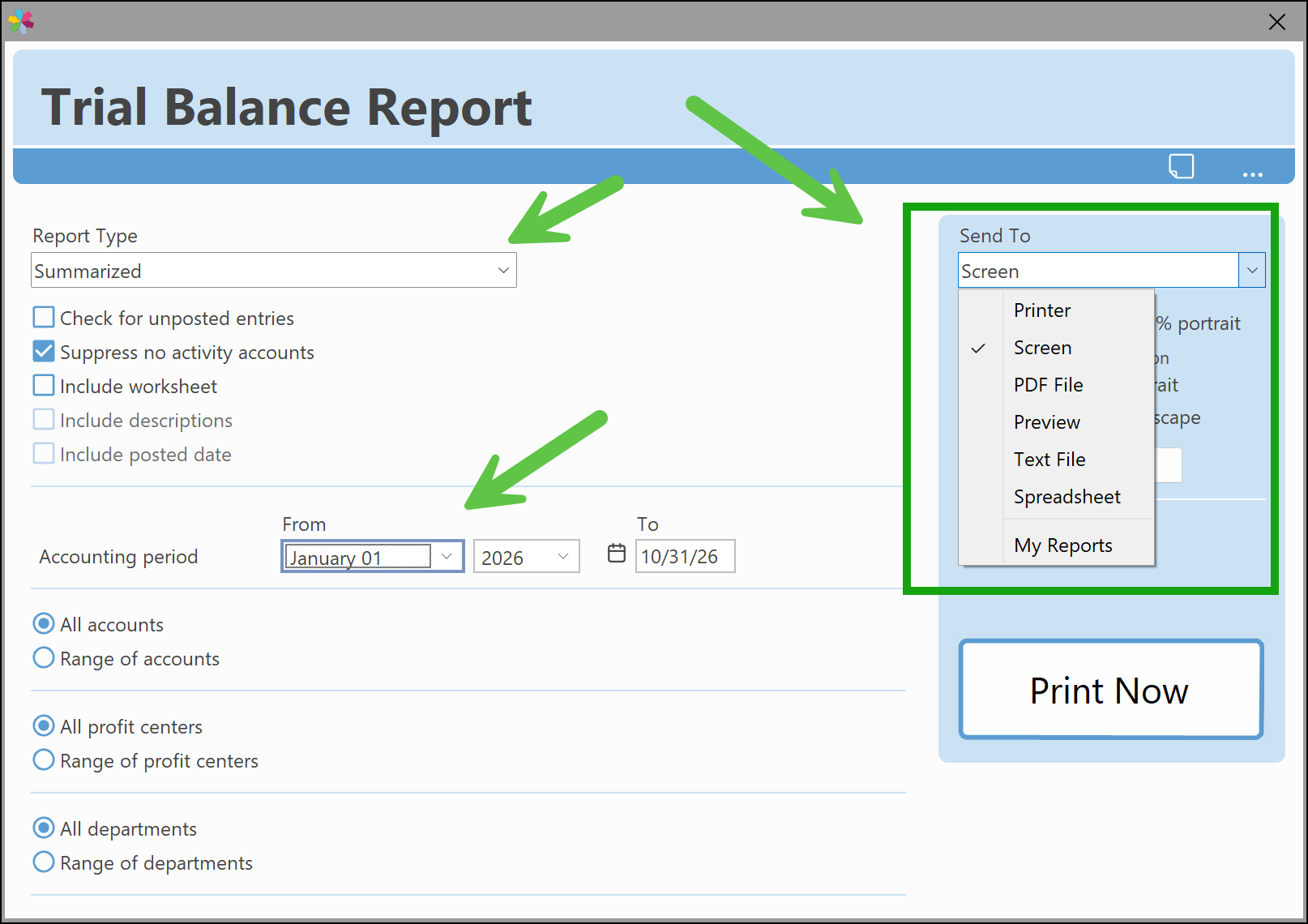
For details on the Send To output options (Printer, Screen, PDF File, Preview, Text File, Spreadsheet, and My Reports), see Reporting Interface and Output Options.
2. Report Types
There are five different report types to choose from in the Trial Balance:

| Report Type | What It Shows |
|---|---|
| Detailed | Shows all the transaction lines for each account in a given period. This is also commonly referred to as a "General Ledger" report as the option to include each entry description is also available, providing a complete audit trail to back up account totals for the reporting period specified. |
| Summarized | Shows one line for each general ledger account. The account number, total debits, total credits, opening balances, and ending balances are listed. |
| Summary by Source | Displays subtotals for all transactions, by general ledger account, for each Source. For example, the bank general ledger account may have the Receipts Journal (RJ), Disbursements Journal (DJ), and General Journal (GJ). |
| Post Closing | Shows the opening Trial Balance from the first day of the fiscal year. |
| Accountant Copy | Provides a basic two-column trial balance that is reflective of typical accountant needs. |
3. Report Options
| Option | What It Does |
|---|---|
| Check for unposted entries | Will check if there are any unposted General Ledger entries. If any are found, it will be stated at the bottom of the report. |
| Suppress no activity accounts SUMMARIZED & ACCOUNTANT COPY | Will leave accounts off if there is no activity for any part of the report. This option is only available for "Summarized" and "Accountant Copy" report types. |
| Include worksheet SUMMARY REPORT ONLY | Is only available when producing a summary report. When it is selected, blank working columns appear on the report to provide space for manual figures. |
| Include descriptions DETAILED ONLY | Displays the description that accompanies the journal entry transaction. This option is only available if the Detailed report type has been selected. This option is particularly useful when you are viewing a transaction that has been posted from Accounts Receivable and Accounts Payable. For example, an Accounts Payable posting will include the vendor name, corresponding payment or purchase number, and the affiliated unique reference number. Similarly, in Accounts Receivable, the invoice number and customer names are automatically posted to the description fields. |
NOTE When this report is printed using the Include descriptions option on macOS, you should select Page Setup and choose the landscape option to print the report on its side, as it is too wide to print on a portrait setting. |
4. Report Filters
| Filter | How to Set It |
|---|---|
| Accounts | Select All accounts or Range of accounts and specify the range. This gives you the option of printing out the details for a single account or range by entering the account number(s) in both the From and To fields. |
| Profit Centers | Select All profit centers or a range of profit centers (From/To). |
| Departments | Select All departments or a range of departments (From/To). |
| Accounting Period | The date range defaults to the beginning of the first period in a company's fiscal year to the period with the current date. To change this, type over the period. |
5. Related Articles
- How to Find Variances Between a Trial Balance and a Listing Report
- My Reports
- Accounts Receivable: Customer Aging
- Sales: Customer Invoice Analysis
- Sales: Customer Item History Report
- Connected 12.0 Update Change Log
6. Reference Links
Was this article helpful?
That’s Great!
Thank you for your feedback
Sorry! We couldn't be helpful
Thank you for your feedback
Feedback sent
We appreciate your effort and will try to fix the article