Knowledge Base · Purchasing & Payables
Applies to: Connected 12.0+ | Platform: macOS, Windows, Connected on Demand
This article describes how Connected helps customers estimate and assess the landed cost(s) of inventory using the Connected Cost Factor.
ARTICLE CONTENTS
- Introduction to the Cost Factor (Landed Cost)
- The Three Types of Cost Factor
- Exporting a Purchase Order and/or Receiving to Spreadsheet
- Cost Factor Example - Tariffs
- Cost Factor Example - Freight
- General Ledger Account Distributions and the Cost Factor
- Related Articles
1. Introduction to the Cost Factor (Landed Cost)
The Connected Cost Factor (aka landed cost) is used to more accurately record the landed cost of inventory imported from other countries. When a purchase order is issued, the item purchase cost should be in the currency that will be payable to the vendor, which could be the home currency (no exchange) or a foreign currency (exchange factor applied).
When receiving inventory for a purchase order, the cost factor(s) — exchange, freight, duty, and taxes/tariffs — are multiplied against the purchase cost of the item to determine the landed cost. This factor can consist of an exchange rate, a factor (percentage) for duty and taxes/tariffs, and a factor (percentage) for freight.
NOTE The Cost Factor doesn't apply to "Service" (non-inventory) type items. If Multiple Currencies are active, refer to the documentation for exchange calculations — freight and duty calculations work the same way, and are explained below. |
Since the freight, duty, and taxes/tariffs may not be known at the time of receiving, these percentages can be estimates. This can also be true for the exchange rate, which may also be estimated.
The cost factor can be sourced from three options:
- Vendor Window
- Inventory Window
- Single Cost Factor
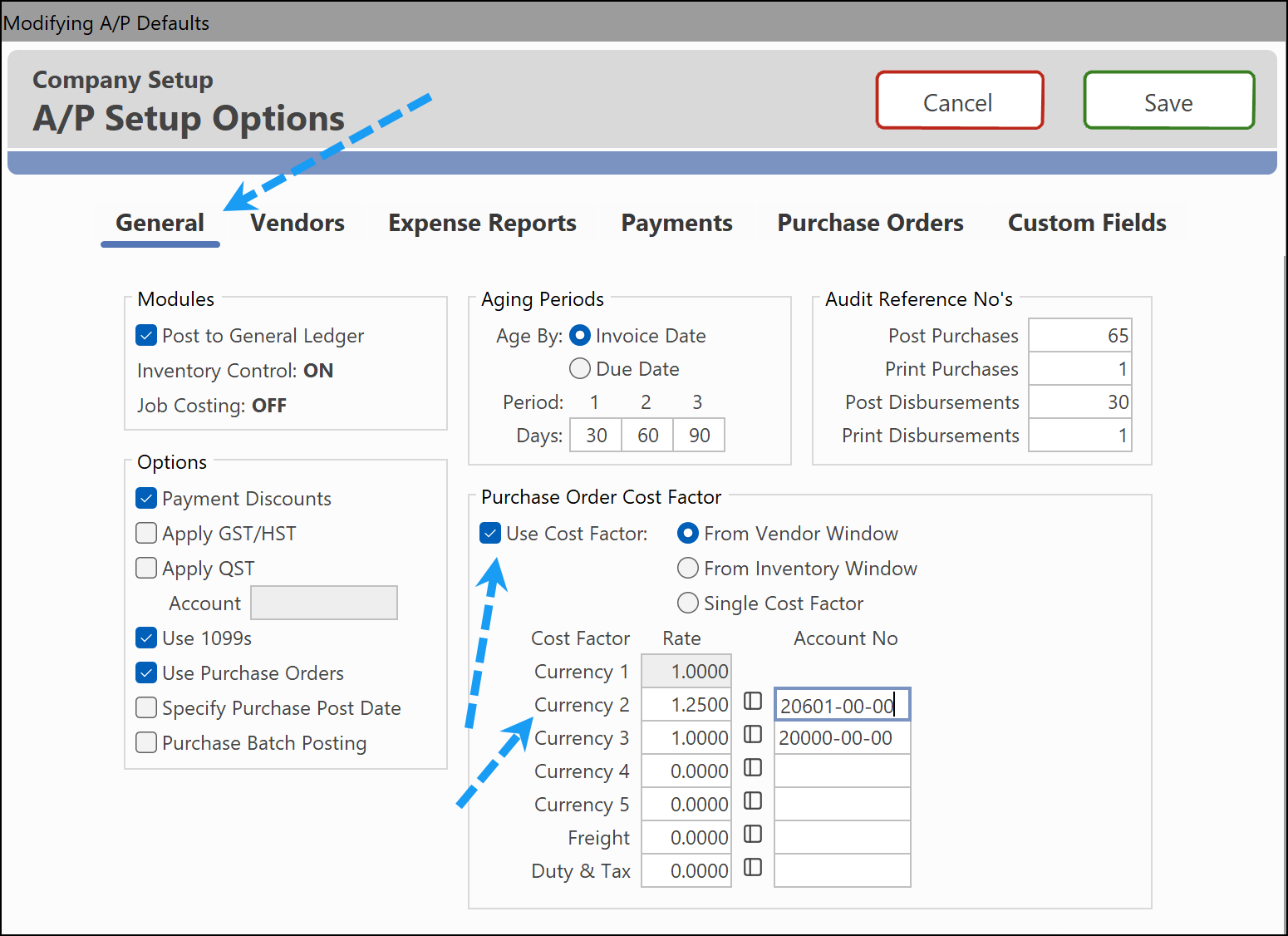
Regardless of the type of cost factor used, each vendor is assigned an exchange rate level. When a vendor is added, they're assigned a number from 1 to 5, which corresponds to an exchange rate level from the exchange table within the A/P Defaults setup screen, as shown below.
1.1 Using a Cost Factor without Foreign Currency
If a vendor is paid in home currency, they should be assigned the exchange rate of 1, but not by using Currency 1. If Currency 1 is used, no cost factors can or will be applied. Currency 2–5 will account for the exchange, duty, and freight amounts assigned. The screen below shows the setup for a zero exchange that still allows for freight/duty/tariff cost allocation using Currency 3. In this example, Currency 3 would be assigned to the vendor.
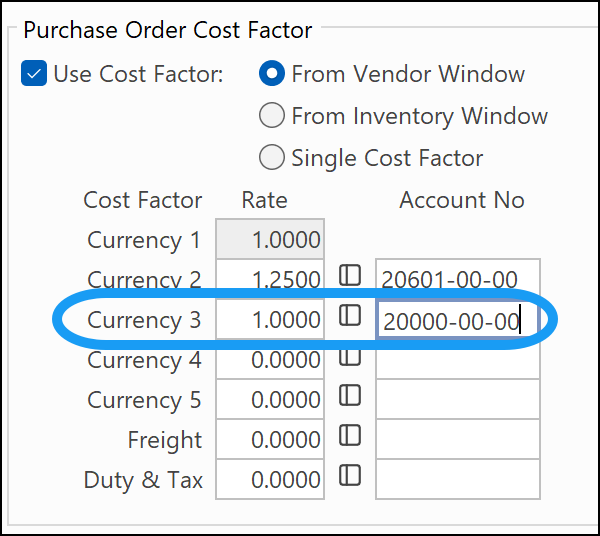
For example, a Canadian company would assign all of its Canadian vendors to level 1, since no exchange or landed cost calculation is required. Its United States vendors, however, could be assigned to level 2. In the Cost Factor settings table, Currency 2 could be assigned a value of 1.25 to account for the exchange rate between the U.S. and Canadian dollars. When inventory is received from a U.S. vendor, it's multiplied by the 1.25, as well as the applicable freight, duty, and taxes percentages.
NOTE When entering freight and duty percentages, enter them as 0.02 for 2%, or 0.12 for 12%, etc. |
Freight and duty & taxes percentages aren't required, so the exchange rates can be used exclusively, or vice versa, using an exchange rate of 1 for any currency level other than Currency 1.
2. The Three Types of Cost Factor
There are three cost factor options to choose from:
- From Vendor Window
- From Inventory Window
- Single Cost Factor
Each is explained in the following sections.
NOTE The Exchange Rate, Freight Rate, and Duty & Tax Rate can optionally be edited when a purchase order is received. This option is available by user privilege. See Intro to User Accounts and Access Privileges for more information. |
2.1 Cost Factor: From Vendor Window
Choosing to use the cost factor From Vendor Window activates the Exchange Rate, Freight Rate, and Duty & Tax Rate fields, as shown below.
NOTE The Exchange Rate is always active in the Vendors window once the Cost Factor is enabled. |
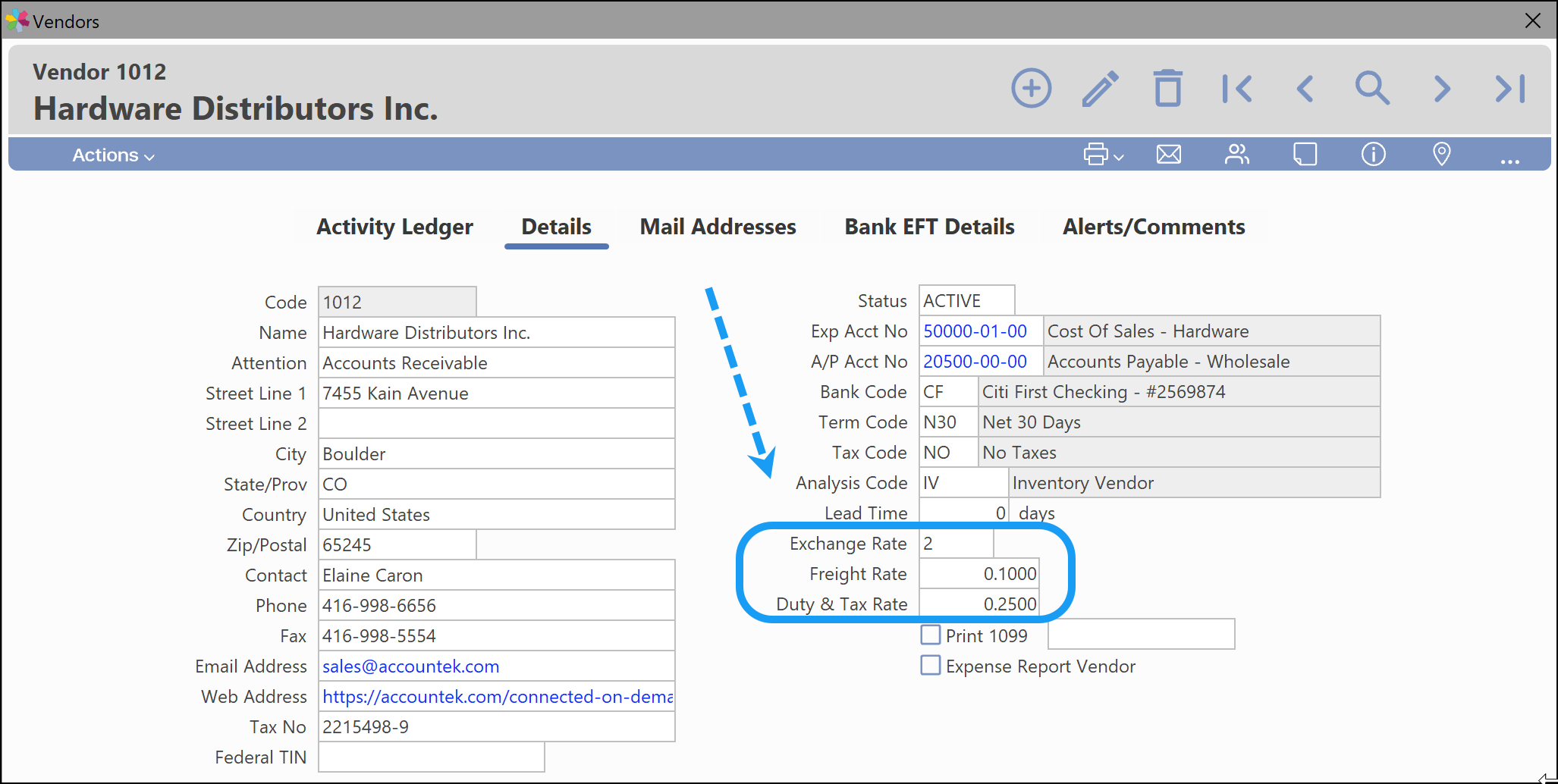
Each vendor can be assigned a Freight Rate and a Duty & Tax Rate percentage. This makes the cost factors more precise, especially if you have vendors in various countries, since freight charges can vary depending on the country of origin.
2.2 Cost Factor: From Inventory Window
Choosing to use the cost factor From Inventory Window lets different freight and duty/tariff percentages be assigned for each inventory item. Vendors still have their own exchange rate level, as used with the other cost factor methods. When enabled, the Freight Rate and Duty/Tax Rate fields are visible in the Inventory window.
NOTE Tariffs use the Duty/Tax Rate percentage. This value, along with the other cost factor variables, can be edited at the time a purchase order is received. |
The screen below shows the location of each factor in the Inventory Item window:
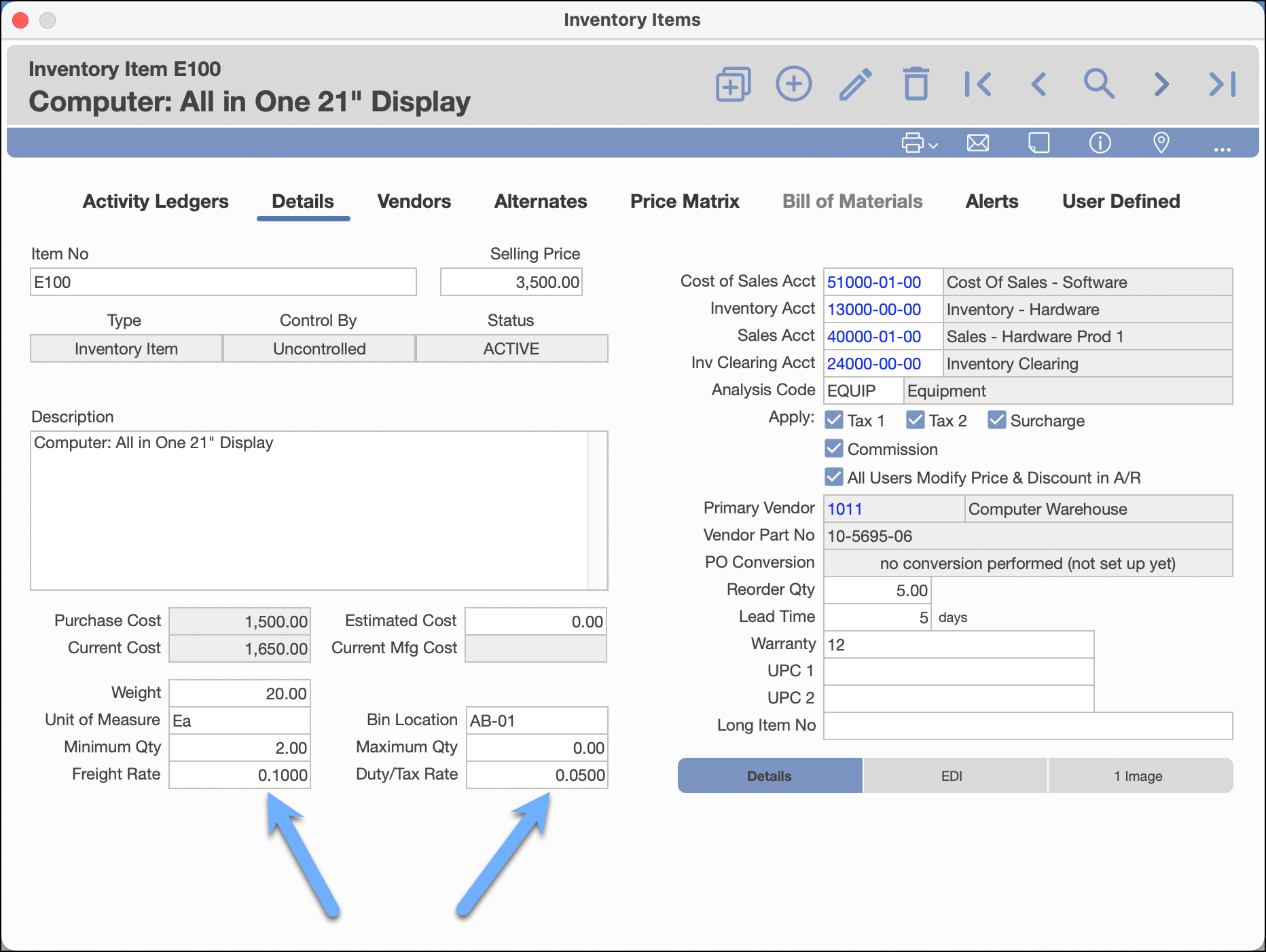
This method is quite useful for companies that have inventory items whose freight and duty & tax costs vary greatly.
2.3 Cost Factor: Single Cost Factor
The Single Cost Factor means a central cost factor is used from the Cost Factor setup in the A/P Defaults. When a receiving is entered, the cost factor amounts for freight and duty and taxes default to the values specified in the A/P Defaults.
NOTE The exchange rate can be used on its own; it's not mandatory to fill in the percentages for freight or duty. |
3. Exporting a Purchase Order and/or Receiving to Spreadsheet
Complex and lengthy purchase orders are often needed in a spreadsheet format. Both the purchase order and the purchase order receivings can easily be exported to a spreadsheet.
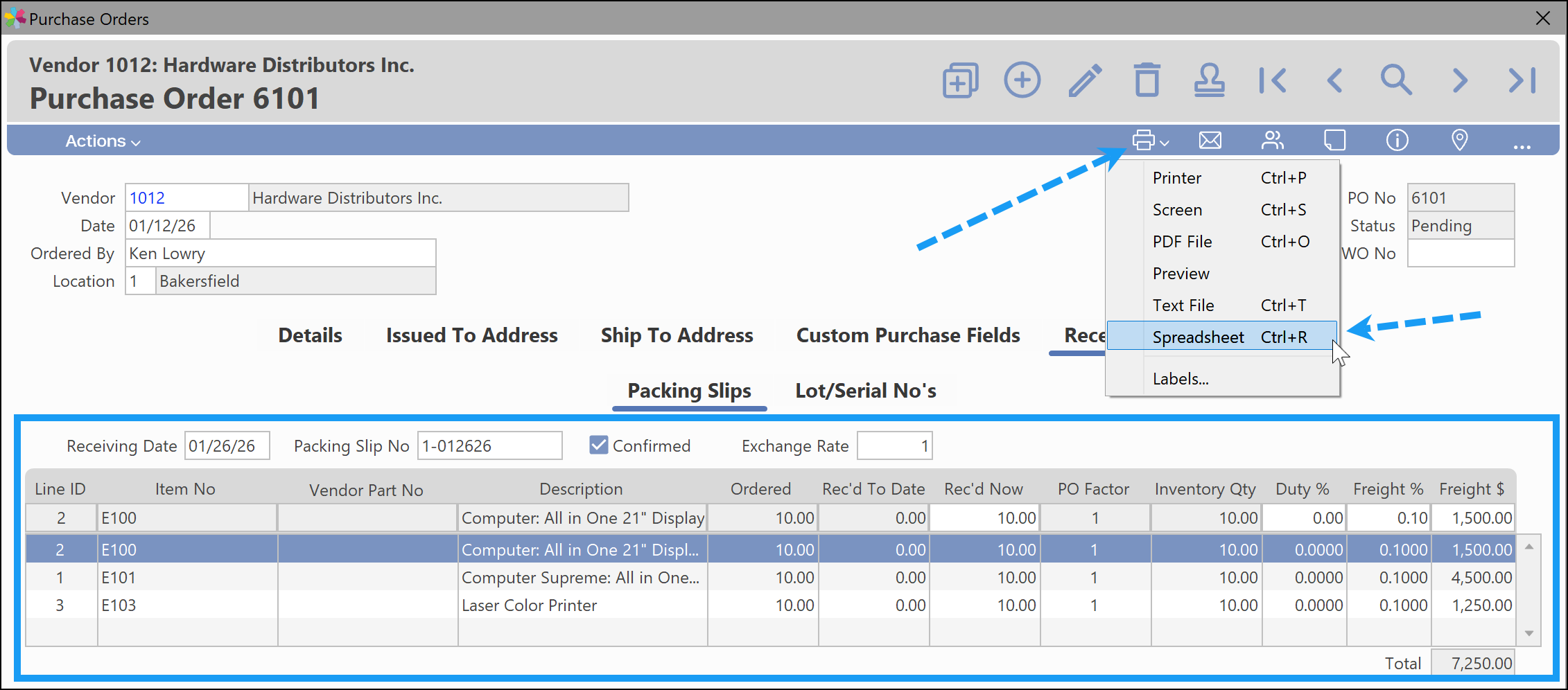
The screen below shows how to export an unposted purchase order receiving by selecting Print → Spreadsheet, with the Receivings tab active. This can be very useful for complex freight/tariff allocations. If the Details tab is active, the purchase order body is exported instead of the receiving details.
4. Cost Factor Example - Tariffs
The following example illustrates how the cost factor is multiplied against a purchase cost to accurately estimate the landed cost.
| Currency 1 | Home Currency is Canadian (Rate 1.00) |
| Currency 2 | Euros (Rate 1.45) |
| Freight | 10% |
| Tariff | 25% |
| Item/Total PO Cost | 1,000.00 EUR |
The purchase order is entered for a single item at a cost of $1,000.00 Euros.
When the item is received against the purchase order, the cost factor rates are stored with the receiving. When the receiving is posted, the value of the purchase is multiplied by the cost factor so the items are immediately valued in the home currency. The landed cost is calculated as follows:
Item with cost of $1,000.00. This amount is multiplied by the exchange rate of 1.45 ($1,000.00 × 1.45 = $1,450.00).
The exchanged amount is then multiplied by the freight percentage to determine the freight cost added to the item ($1,450.00 × 0.10 = $145.00). Freight also appears in dollars, so precise per-unit freight cost allocation is possible.
The exchanged amount is also multiplied by the Tariff (aka Duty/Taxes) percentage ($1,450.00 × 0.25 = $362.50).
The total landed cost of the item is therefore calculated as:
$1,450.00 + $145.00 (10% Freight) + $362.50 (25% Tariff) = $1,957.50
$1,957.50 is the final unit price for this purchase order example.
5. Cost Factor Example - Freight
The following example illustrates how freight costs are allocated to unit costs by percentage and/or dollar allocation.
5.1 Receiving Purchase Orders
When the purchase order is received with a non-home currency code, or a purchase order cost factor for the vendor that's greater than 1, the Freight % and Freight $ fields become editable per line.
Depending on the settings selected, some Freight values may be pre-populated with percentages. Factors are shown as whole values instead of percentages.
| Currency 1 | No Exchange |
| Freight Estimation from Vendor | 10% |
| Tariff/Taxes | 0 (none) |
| Total Freight in $ | $7,250.00 |
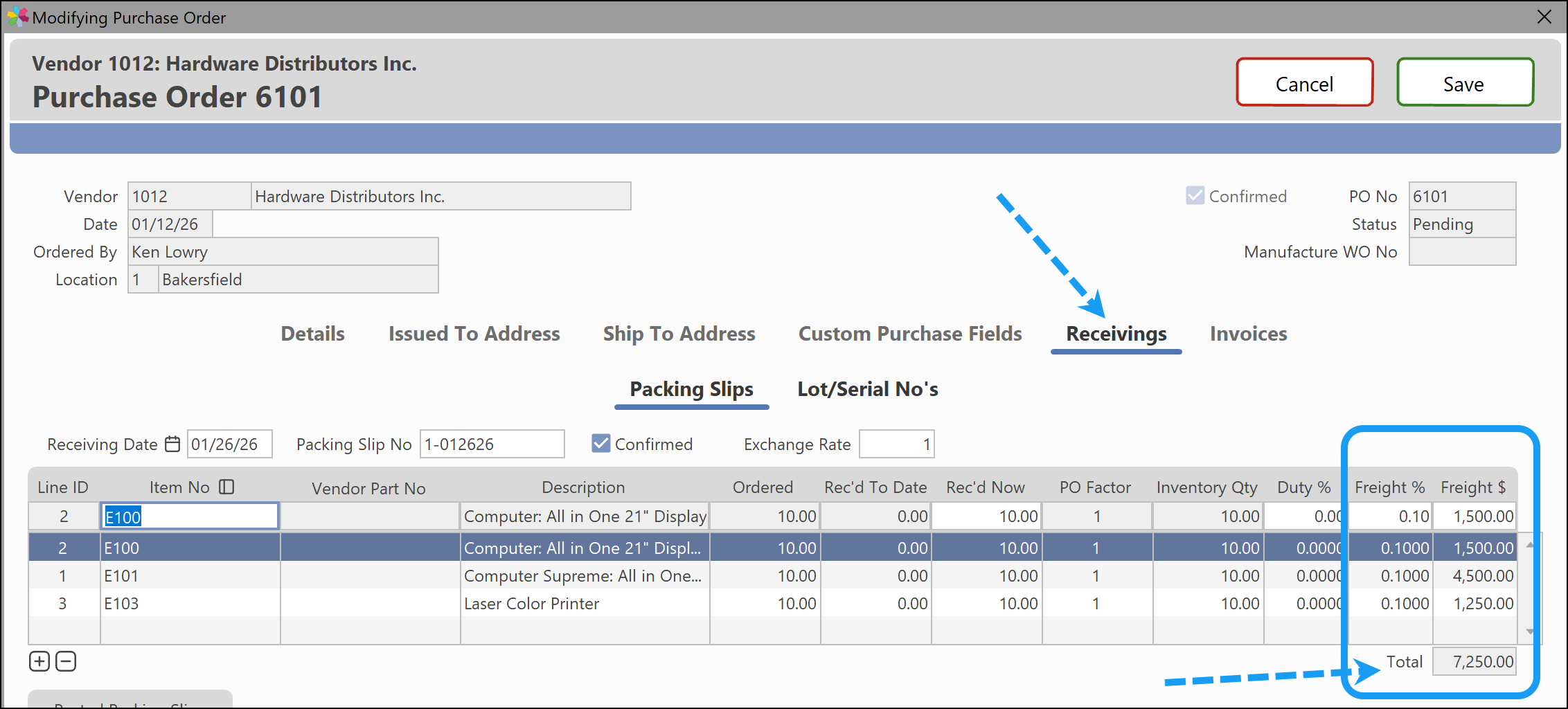
The converted Freight $ from these factors appears to the right of the factor, as shown, with a total of the freight amount to be applied to the purchase order receiving.
If the Freight % is entered, the Freight $ value is automatically calculated.
If the Freight $ is entered, the Factor % automatically recalculates once the Tab key is pressed to pass the Freight $ field.
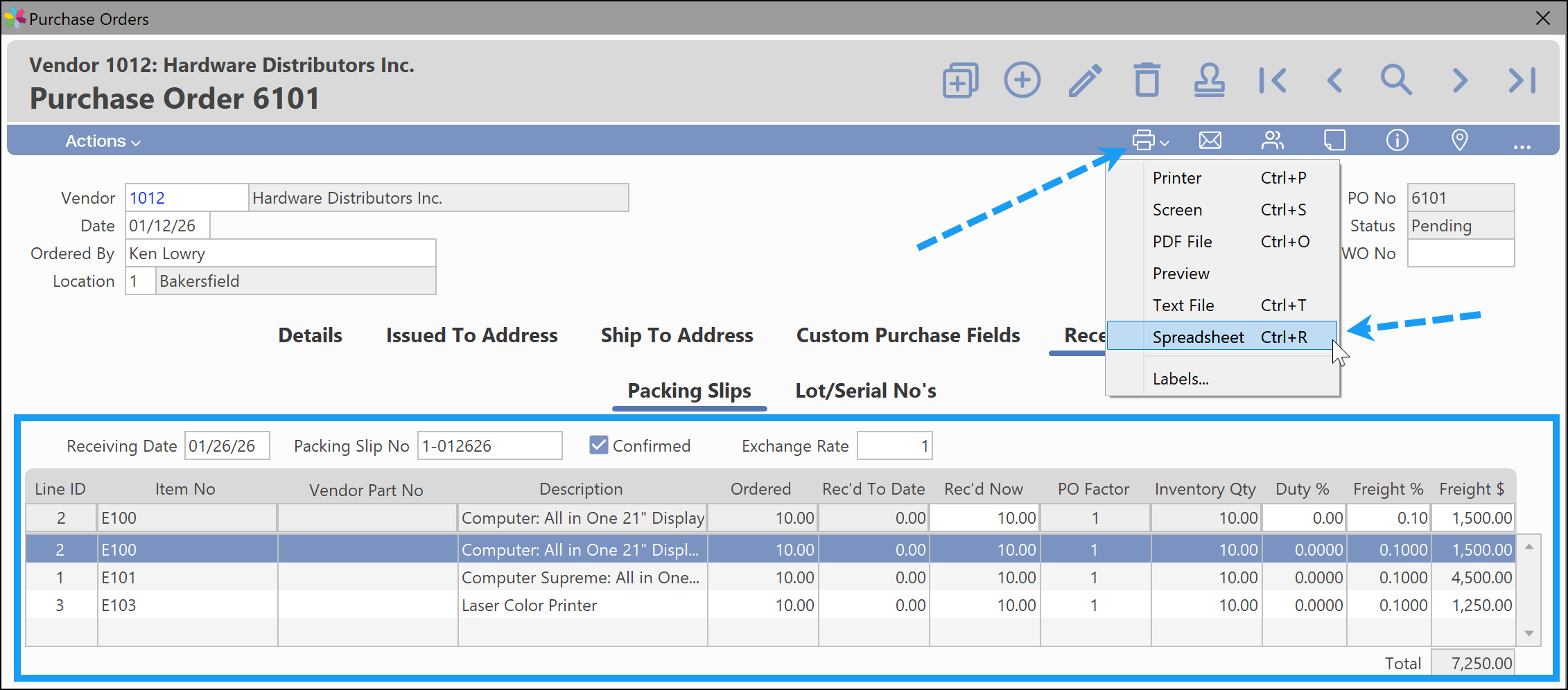
TIP Exporting the unposted receiving to a spreadsheet can be very helpful for complex freight allocations by dollar or percentage. |
6. General Ledger Account Distributions and the Cost Factor
Financial accounting for inventory received on a purchase order is created when the vendor bill is matched against the purchase order receiving. Each area of the cost factor (exchange, freight, duty & taxes) has a separate general ledger account, since each area of the cost factor is tracked separately. There is an exchange liability account, a freight liability account, and a duty & taxes liability account.
Below are examples of the account distributions created when a bill from a vendor is entered against an outstanding purchase order. For the purposes of this example, assume you're purchasing an inventory item costing $1,000.
G/L Distribution without the Cost Factor
| Account | Amount |
|---|---|
| DR Inventory Asset | $1,000.00 |
| CR Accounts Payable | $1,000.00 |
G/L Distribution with the Cost Factor — exchange rate of 1.45, a freight percentage of 10%, and a duty & taxes/tariff percentage of 5%:
| Account | Amount |
|---|---|
| DR Inventory Asset | $1,957.50 |
| CR Accounts Payable Euros | $1,000.00 |
| CR A/P Exchange Liability | $450.00 |
| CR Freight Liability | $145.00 |
| CR Duty & Taxes/Tariff Liability | $362.50 |
To balance the increase in inventory value, the three parts of the cost factor are allocated to their respective liability accounts, defined in the A/P Defaults setup screen.
The exchange, freight, and duty & taxes/tariff liability accounts above will continually increase with purchase orders that use a cost factor. Below is an example of how these accounts are cleared out.
When a bill for the duty & taxes/tariff is received, it's typically a separate bill to a different vendor from the inventory purchase, and is entered on the Purchases window separately. For example, suppose the duty & taxes/tariff bill for this transaction was indeed $362.50, as shown above. You would enter this bill as a purchase entry of $362.50 for the vendor (customs broker) that supplied the bill. The distribution for the bill would be as follows:
| Account | Amount |
|---|---|
| DR Duty & Taxes/Tariff Liability | $362.50 |
| CR Accounts Payable | $362.50 |
This transaction brings the duty & taxes liability account to a net of zero. In reality, however, the actual bill may not match the estimated amount created by the cost factor. This means at month end or year end, a journal entry adjustment may be needed to clear out the balance of the duty & taxes liability account. The same is true for the other two liability accounts. The cost factor is used for estimating landed cost, so minor discrepancies are normal and should be expected — the same is true for the freight costs on this shipment.
7. Related Articles
Was this article helpful?
That’s Great!
Thank you for your feedback
Sorry! We couldn't be helpful
Thank you for your feedback
Feedback sent
We appreciate your effort and will try to fix the article