Knowledge Base · Data Exchange
Applies to: Connected 12.0+ | Platform: Windows, macOS & Cloud
ARTICLE CONTENTS
- Overview
- How the Data Exchange Works
- Types of Jobs
- Data That Can Be Exported
- Data That Can Be Imported
- Delivery and Notifications
- Operating Data Exchange Jobs
- Setup and Configuration Services
1. Overview
The Connected Data Exchange automates the movement of data into and out of Connected. Instead of running imports and exports by hand, the Data Exchange runs them as scheduled jobs in the background, so information stays in step between Connected and other business systems.
It is an excellent tool for integrating Connected with an external website, an online store, a trading partner, or another database. For example, the Data Exchange can automatically export or import customer, inventory, sales, and purchase order records.
NOTE While the Data Exchange is available to all Connected users, configuring jobs is a billable Accountek service and is not covered under Connected Support Agreements. This includes selecting and documenting fields, mapping them to the receiving system, and testing the results. The Data Exchange is a powerful tool, and setting up jobs correctly requires in-depth knowledge of Connected’s data structure. |
2. How the Data Exchange Works
Each automated task in the Data Exchange is called a job. A job defines what data is moved, where it goes or comes from, and when it runs. Several jobs of different types can be set up and run at the same time.
- Scheduled processing: Export jobs can run on demand, once a day at a set time, or repeatedly at a set interval of minutes, hours, or days. Backup jobs run on selected days at a set time.
- Watch folders for imports: Import jobs use a “watch” folder. Connected monitors the folder and automatically processes each import file as soon as it is dropped in. Files are processed in the order they were created, and each file is moved to a processed or failed folder with a log of the results.
- One control for all jobs: All active jobs are started together from a single control in the Data Exchange window. Once started, the Data Exchange keeps working until it is stopped. Individual jobs can be paused, stopped, or restarted without affecting the others.
- Activity history: Every completed process is recorded in a process activity log, which can be exported to review job history or to help Accountek Support troubleshoot a job that did not run as expected.
- Portable jobs: Like Connected forms, Data Exchange jobs can be exported from one data file and imported into another.
3. Types of Jobs
The Data Exchange supports three types of jobs:
- Export jobs: Automatically produce data files from Connected on a schedule. Exports can include all records each time, or only records that are new or changed since a set point, so the receiving system gets just what it needs. Files are created as tab-delimited text or comma-separated values (CSV).
- Import jobs: Automatically bring data into Connected from files placed in a watch folder, such as orders from a website or new customers and items from another system.
- Backup jobs: Run scheduled backups of the Connected data file. Backups are especially useful before import jobs run, and can be saved to a local folder or sent to an FTP/SFTP server.
WARNING Import jobs change the data in the Connected file automatically. Import files must be created in the correct format, and every import should be tested before it is set up to run automatically. |
4. Data That Can Be Exported
The following data can be exported:
- Customer information, including shipping addresses
- Invoice headers and details
- Sales order headers and details
- Customer item details (customer price lists)
- Custom price tables (inventory)
- Inventory items
- Inventory item stock levels, by location if required
- Inventory cost layer levels
- Purchase order headers and details
5. Data That Can Be Imported
The following data can be imported automatically:
- Customers
- Inventory items
- Sales orders
- Invoices and credit memos
- Purchase orders
NOTE Because import files are processed in the order they were created, related data has to arrive in the right sequence. For example, a new customer has to be imported before a sales order or invoice for that customer. |
6. Delivery and Notifications
- Where files go: Exported files and backups can be saved to a local folder, or sent directly to an FTP or SFTP server, such as one provided by a trading partner or hosting provider.
- Email notifications: Each job can send no email, email only when errors occur, or email the results of every run, so the right people know when something needs attention.
7. Operating Data Exchange Jobs
Once a data exchange job is ready, the day-to-day operation is simple. This section covers how to run, monitor, and check Data Exchange jobs.
Jobs prepared by Accountek are delivered as a job file that is imported into Connected. See 7.8 Importing a Data Exchange Job for the steps.
7.1 Opening the Data Exchange
Select Utilities from the File menu and select Data Exchange. The Data Exchange window lists the configured jobs on the left.
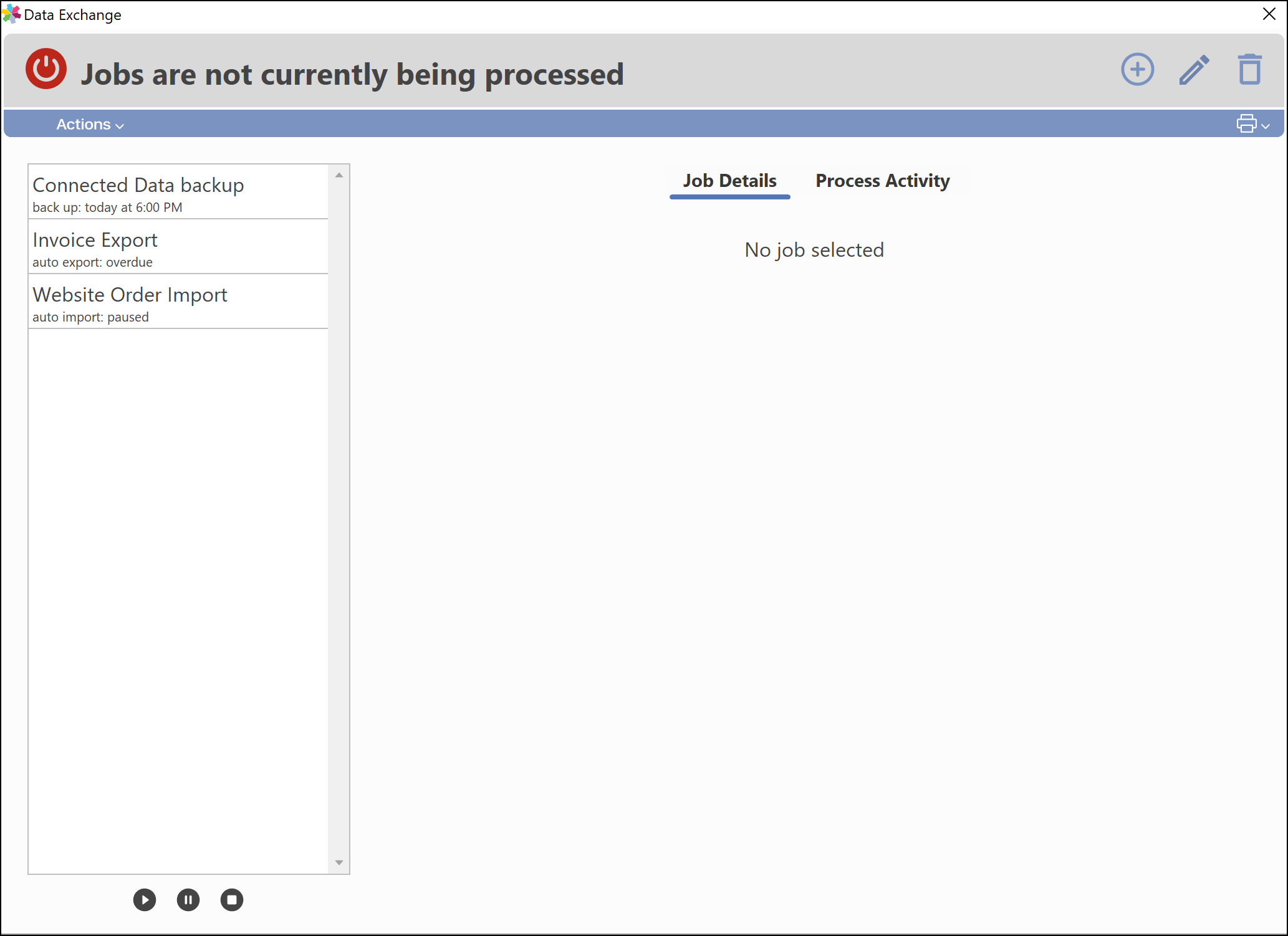
TIP Users who are not Administrators need the Data Exchange user privilege enabled on their user account before the Data Exchange becomes available. |
7.2 Starting and Stopping Jobs
All active jobs are started and stopped together from a single control.
- Open the Data Exchange.
- Click the Start Jobs (power) icon at the top left, or select Start Job Processing from the Actions menu. A red icon means no jobs are running; a green icon means jobs are processing or scheduled to be processed.
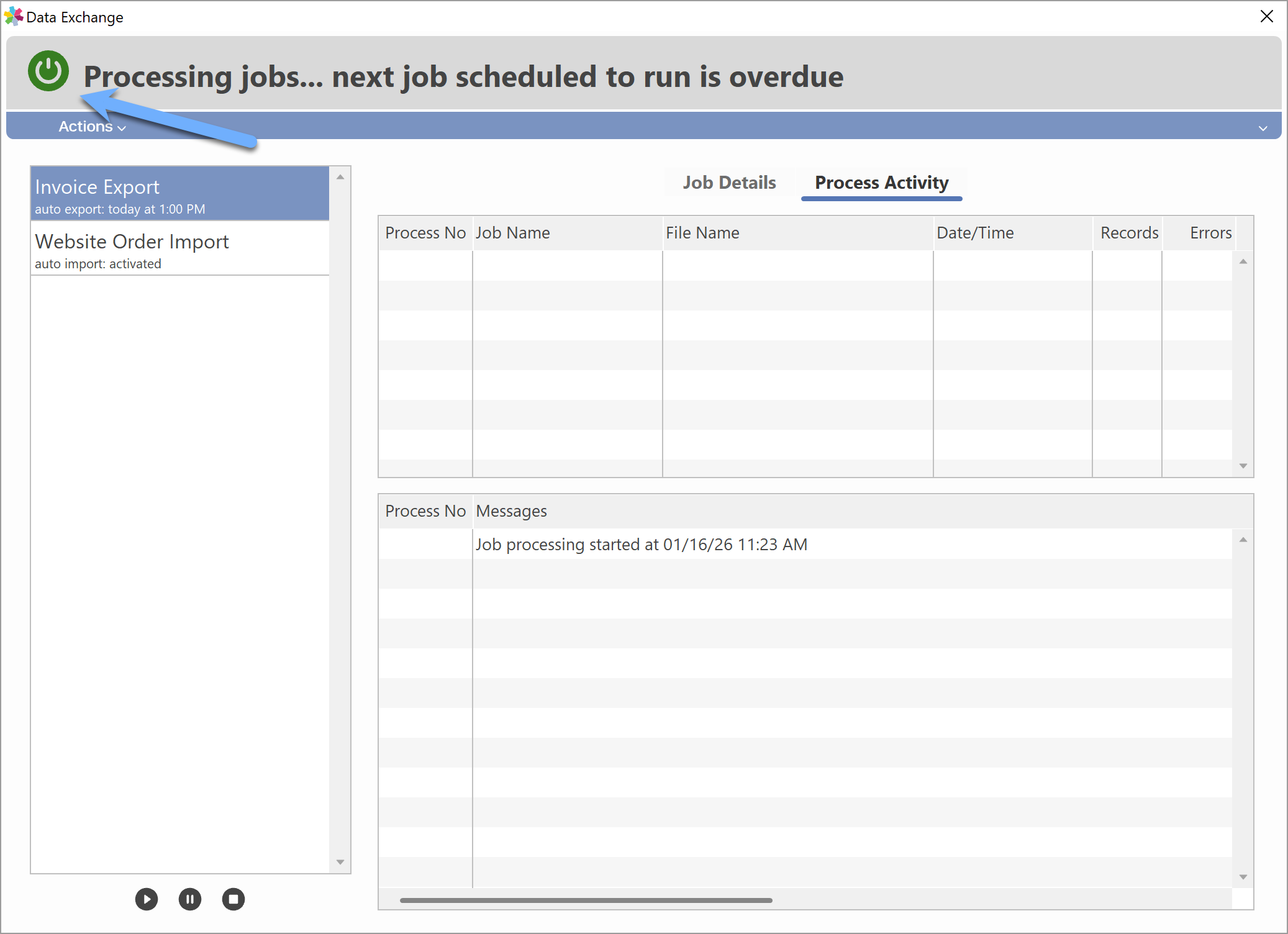
- The Data Exchange keeps processing until the jobs are stopped. To stop all jobs, click the power icon again.
NOTE Jobs only run while the Data Exchange is started. If the Data Exchange is stopped, scheduled exports and backups will not run and import files will wait in the watch folder until it is started again. |
7.3 Monitoring Job Activity
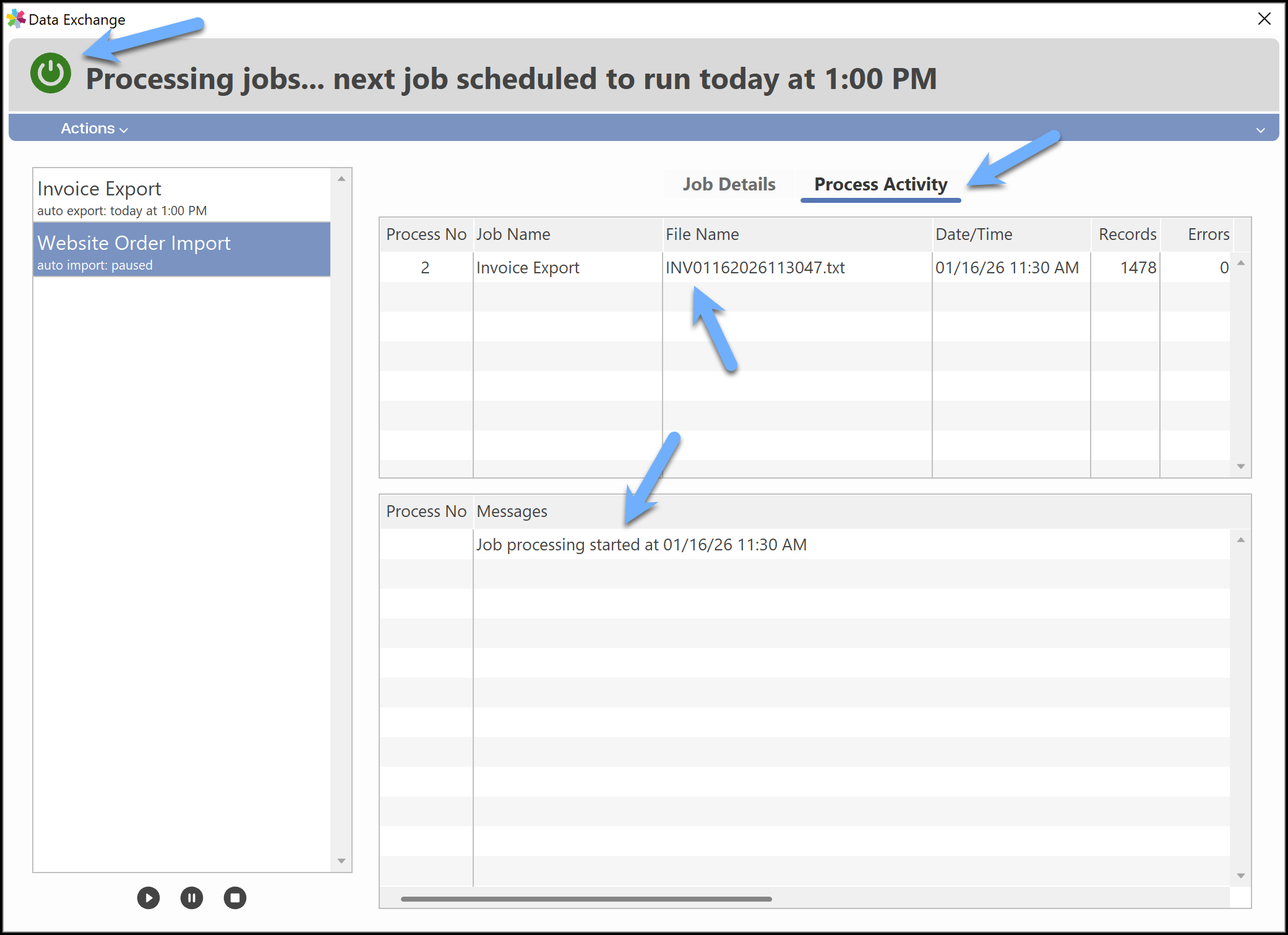
As each process completes, a record of it appears on the Process Activity tab. Check this tab to confirm the jobs are running as expected.
7.4 Pausing, Stopping, and Restarting a Single Job
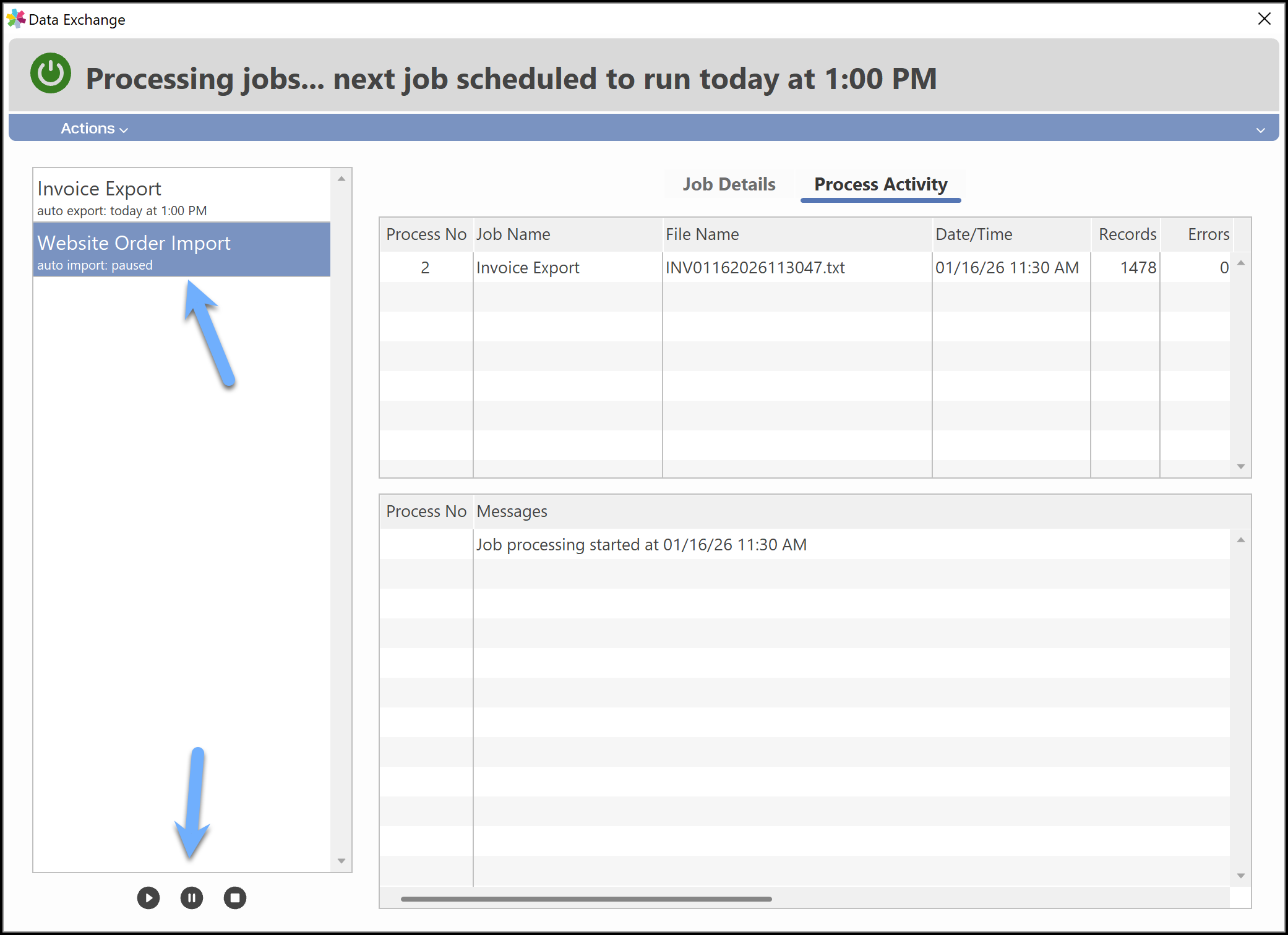
While the Data Exchange is running, a single job can be paused, stopped, or restarted without affecting the others. Highlight the job in the left pane of the window, then choose the action from the controls at the bottom left.
7.5 Running a Job On Demand
An export job can also be run once on demand, for example to produce a file right away or to test the output. This is done while the Data Exchange is not running. Select the job, click the Actions menu at the top left and select Run Job Now.
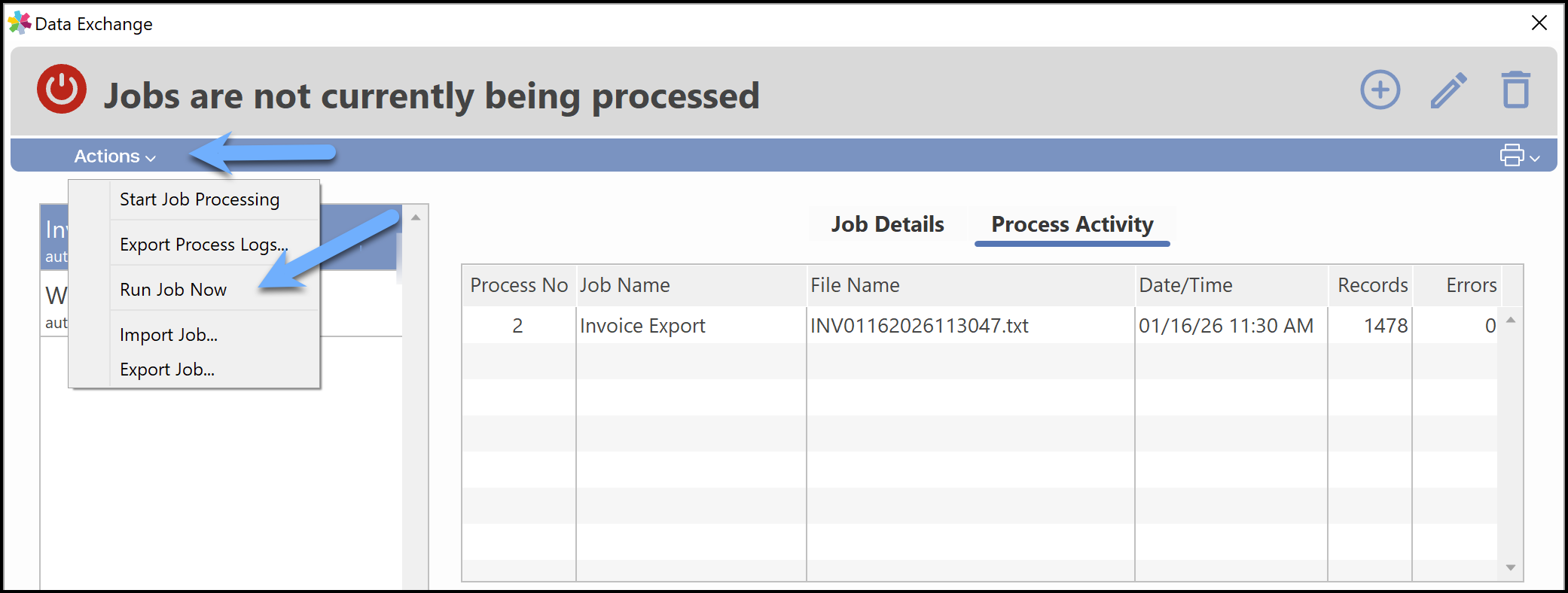
TIP Running jobs on demand is ideal for testing, and for sites where a dedicated “headless” Data Exchange instance cannot be left running continuously. In that case, jobs can be run manually as needed instead of on a schedule. |
7.6 Checking Import Results
Three subfolders are created in each import job’s watch folder: Processed, Failed and Logs.
- Files that import successfully are moved to the Processed folder.
- Files with errors are moved to the Failed folder.
- A log file for every import is written to the Logs folder. The first line of each log shows Processed if the file imported successfully, or Failed if any items were not imported due to errors.
NOTE A file in the Failed folder does not necessarily mean nothing was imported. It means some or all of the items in that file were not imported. Check the log file for details. |
7.7 Exporting Process Logs for Support
If a job does not run as expected, Accountek may need the process log to help troubleshoot the issue. The log records each process the Data Exchange has run. To export it:
- Open the Data Exchange.
- Click the Actions menu and select Export Process Logs....
- Choose a location and file name for the log file, then click Save.
7.8 Importing a Data Exchange Job
Like Connected forms, Data Exchange jobs are portable. A job prepared by Accountek is sent as a job file, which is imported into the Data Exchange on the computer that will run it.
- Open the Data Exchange.
- Click the Actions menu and select Import Job....
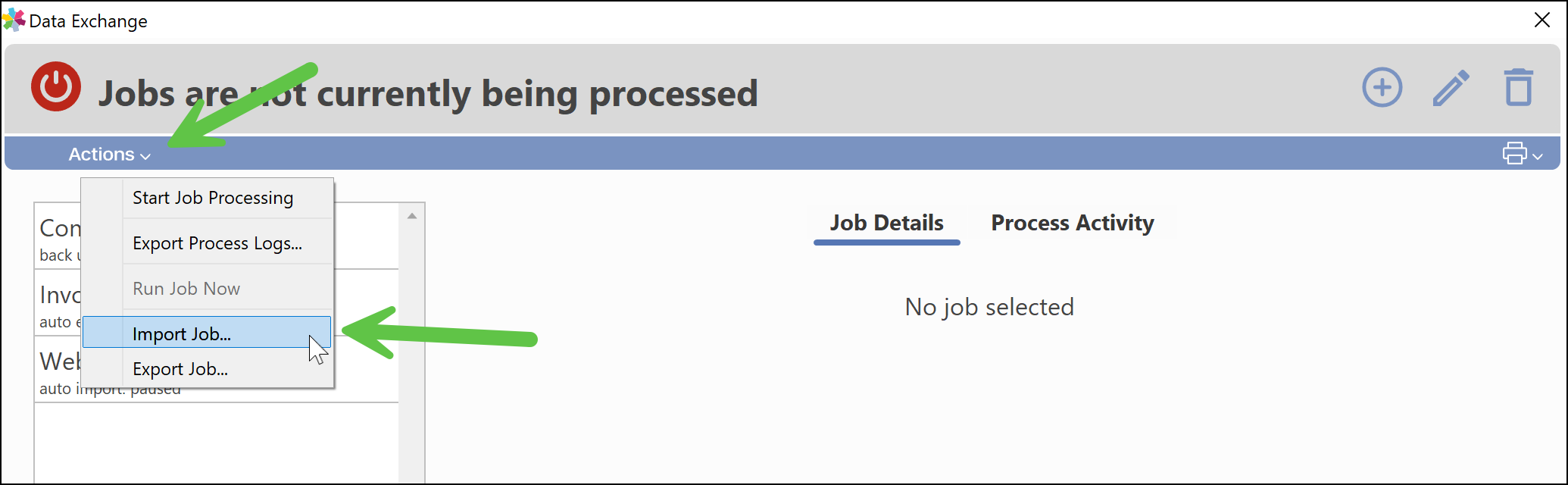
- Select the job file received from Accountek and open it. The imported job is added to the list of jobs on the left.
- Start the Data Exchange so the job begins running on its schedule (see 7.2 Starting and Stopping Jobs).
NOTE Before starting a newly imported job, contact Accountek Support if the folders, FTP/SFTP server, or email settings it uses need to be confirmed for this computer. |
8. Setup and Configuration Services
Setting up a Data Exchange integration typically requires knowledge of both Connected and the receiving system, including how fields are mapped, formatted, and filtered between them. For that reason, Accountek configures Data Exchange jobs as a billable service. This includes creating and testing the jobs, field mapping, friendly field names and descriptions, and a full job map.
To discuss requirements, contact Accountek Support.
Was this article helpful?
That’s Great!
Thank you for your feedback
Sorry! We couldn't be helpful
Thank you for your feedback
Feedback sent
We appreciate your effort and will try to fix the article