Knowledge Base · General Ledger and Financials
Applies to: Connected 12.0+ | Platform: macOS, Windows, Connected on Demand
The Connected Bank Reconciliation can be made faster and more efficient by importing a QBO file for transaction matching. Accountants and/or bookkeepers can quickly and accurately match imported bank transactions to the corresponding Connected transaction.
What Does Importing a QBO File Do?
- It saves time by helping to match transactions from a bank statement automatically with ones entered in Connected.
- Helps to ensure accuracy when reviewing bank transactions.
- Easily identifies transactions not yet entered. For example, bank charges.
- Isolates transactions as "matched" or "unmatched" so the focus is narrowed to unreconciled items.
- Creates a great audit trail with the ability to attach the actual bank statement PDF file and/or the QBO file used. Files are easily attached within the Connected Notes. Reference: Attaching Files within Notes.
What Doesn't Importing a QBO File Do?
- It will not create new transactions, like bank fees or customer payments.
- It doesn't happen automatically — a user-initiated file selection, downloaded from the bank, is required.
ARTICLE CONTENTS
- 1. Getting Started – Adjust Payment Receipt Groupings
- 2. Using a .QBO File to Match Bank Transactions
- 3. Tips and Tricks
- 4. Related Articles
- 5. Reference Links
NOTE This article assumes that Bank Reconciliation is enabled and being actively used in your Connected company data file. |
1. Getting Started – Adjust Payment Receipt Groupings
On a bank statement, checks and cash deposits are normally grouped together along with incoming credit card transactions, however ACH/EFT deposit transactions will often appear as separate entries.
Users can control what receipt types are grouped in Connected, to align with how transactions appear on a bank statement or QBO file export.
There are two areas of setup in Connected that need to be verified and/or changed prior to importing bank transactions to ensure the most accurate and easy matching process possible.
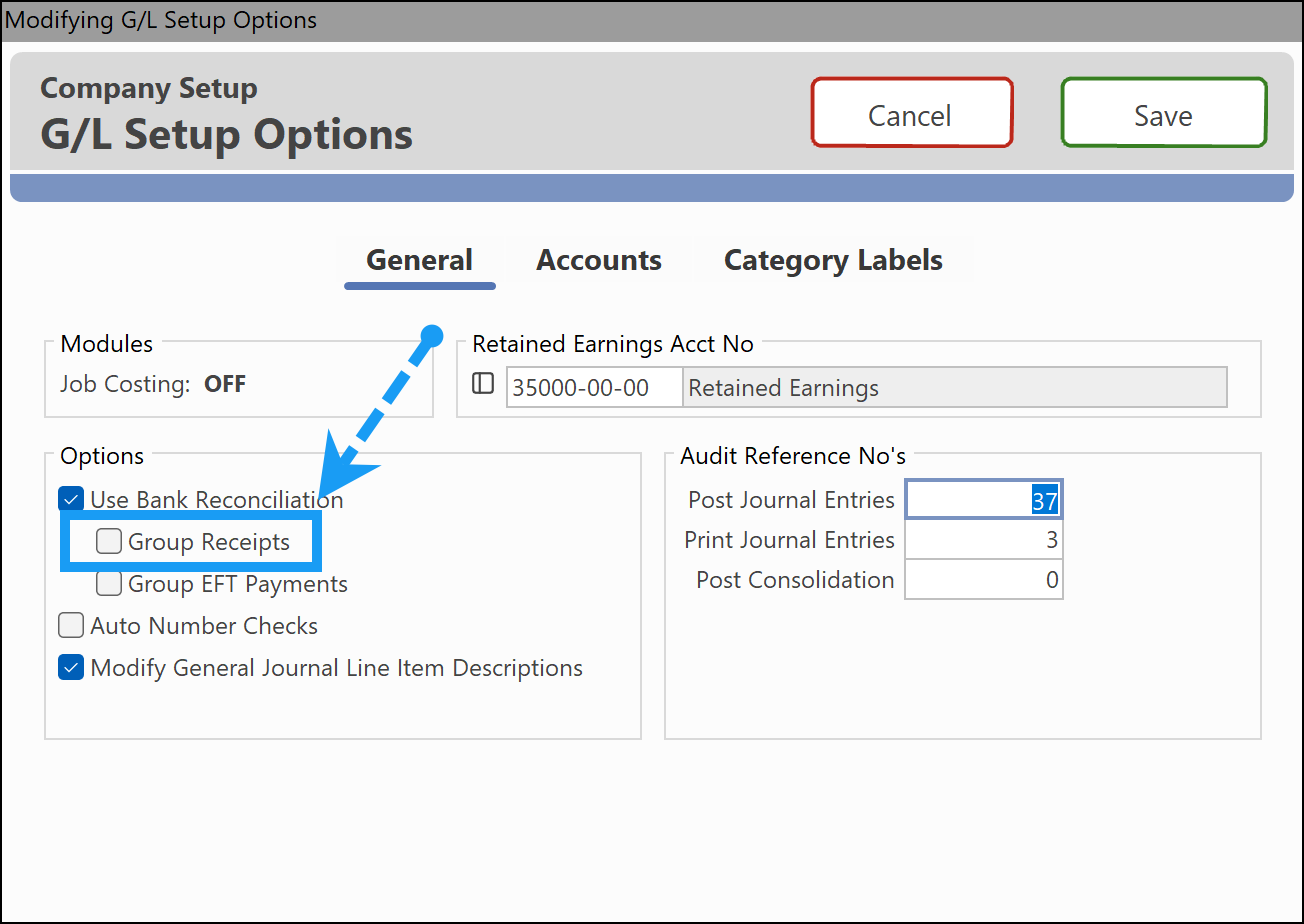
Step 1 – Turn Off "Group Receipts" Setting for Bank Reconciliation
First, to allow the Bank Reconciliation window to display user-specified receipt type groupings, the following setting needs to be unchecked:
- Go to
File → Company Setup → G/L Defaults. - Verify that the Group Receipts on Bank Reconciliation checkbox is unchecked.
Step 2 – Set Up Custom Grouping for Individual Receipt Types
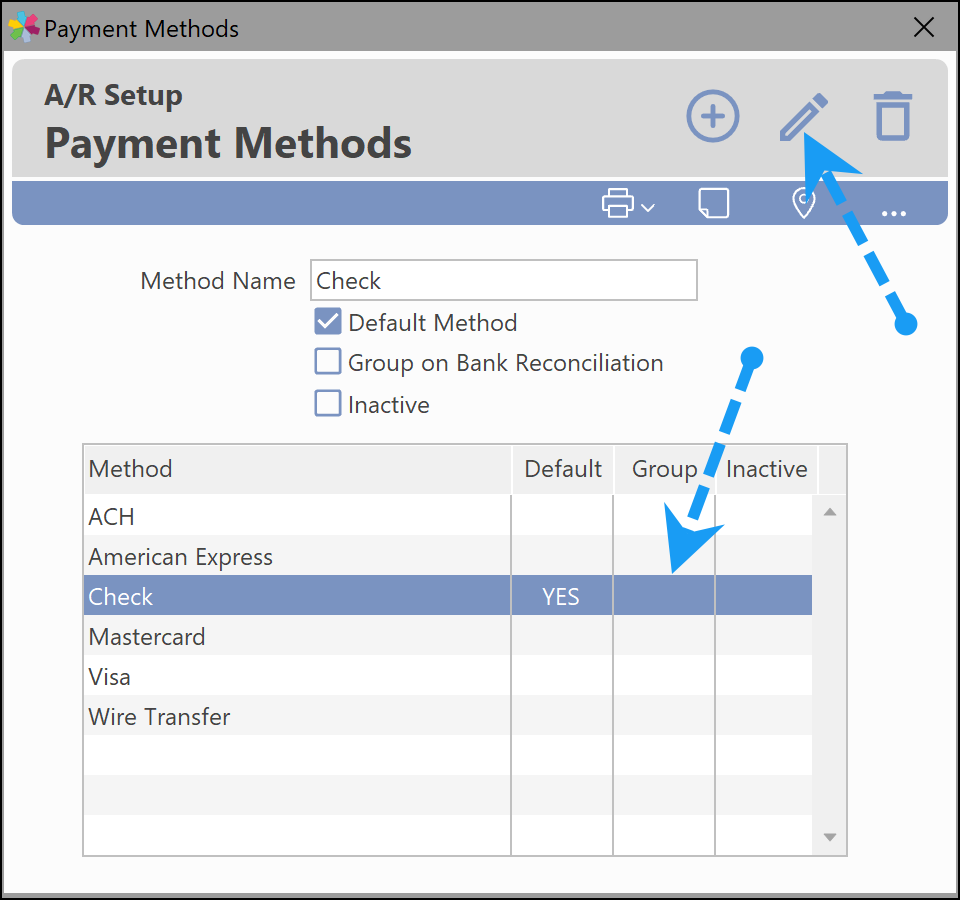
This step allows users to set up specific groupings of receipt types that align with how their bank statement presents them.
- Go to
A/R → Setup → Payment Methods. - Select the payment type to be grouped.
- Select Modify at the top of the window.
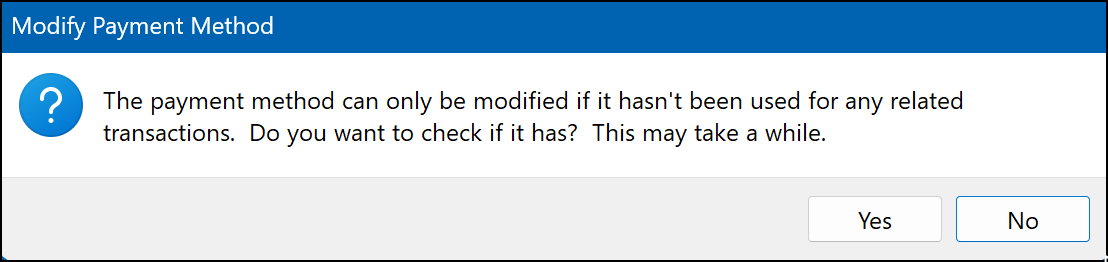
NOTE
When modifying the payment method, ensure that you answer No to the following prompt.
- Select the Group on Bank Reconciliation checkbox.
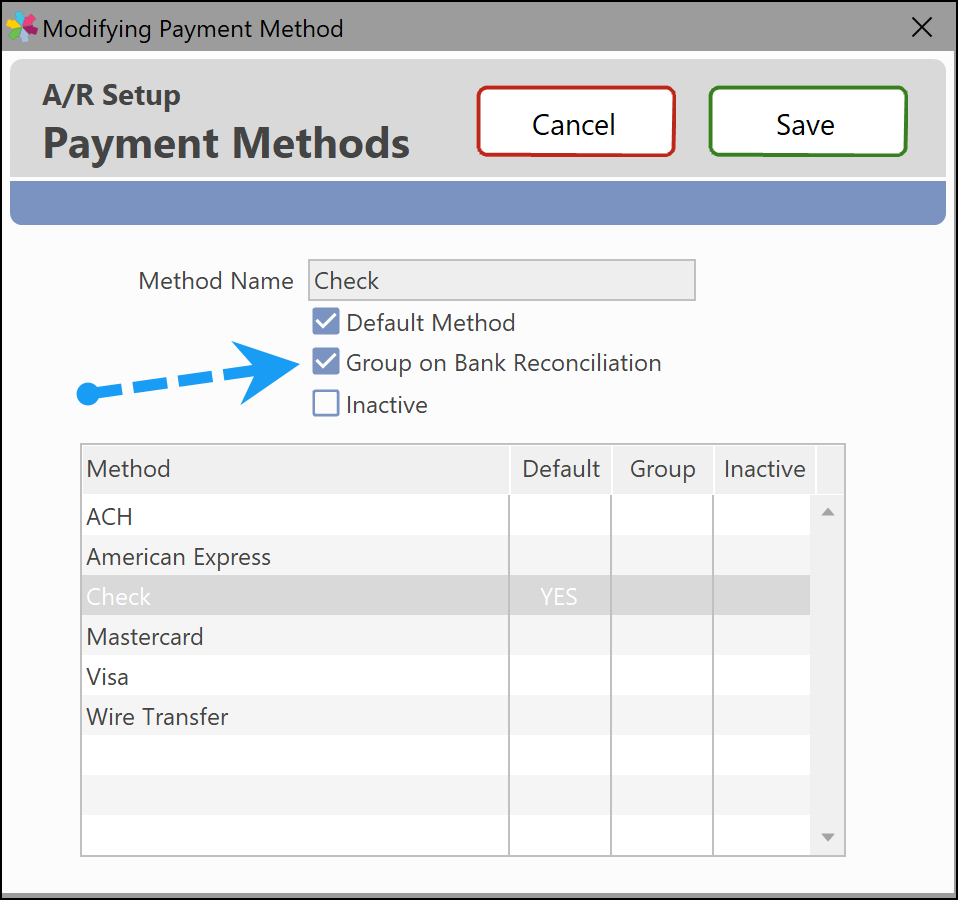
- Save the changes.
All transactions with the same method and the same date will be totaled together on the bank reconciliation window.
2. Using a .QBO File to Match Bank Transactions
2.1 Downloading a .QBO File
Most banks have a .QBO export format of transactions available for users. This format can be imported into Connected to assist in matching against existing transactions. It's usually an option in a dropdown menu on a bank website when logged in.
- Download a .QBO formatted file from your bank website for the account being reconciled.
- Save this file to an accessible location.
2.2 How to Start Using a .QBO File
- Open the Bank Reconciliation window in Connected.
- Select a bank code and period to load the transactions into the window.
- From the
Actions → Match QBO Transactions filemenu, navigate to and open the downloaded QBO formatted file.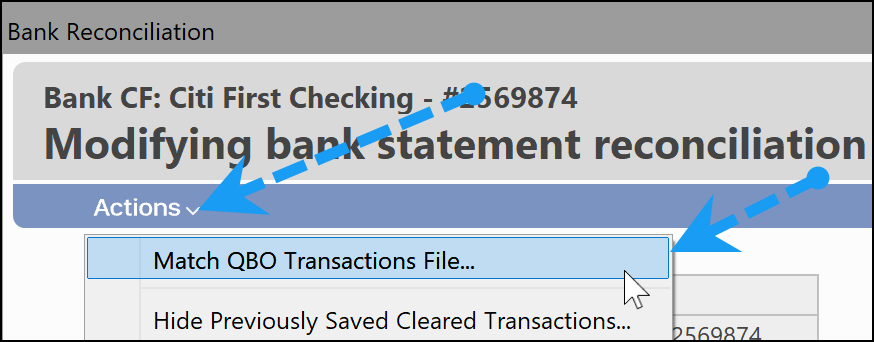
- The QBO file is read by Connected and an auto-match process occurs.
- The bank reconciliation window alters to display the QBO-specific controls, and an OK message informs the user of the matching results.
2.3 How Does Auto-Match Work?
Auto-match is defined as:
| Exact | Matches on check number and amount, OR exact matches on date and amount (but no other transactions having the same date or amount). |
| Likely | Matches must have dates within +/- three days and an exact amount (but with no other transactions having the same date and amount). |
Matching is always performed with the reconciliation transactions in their default sort order: date, source, payment method, description, debit amount, credit amount (all ascending values).
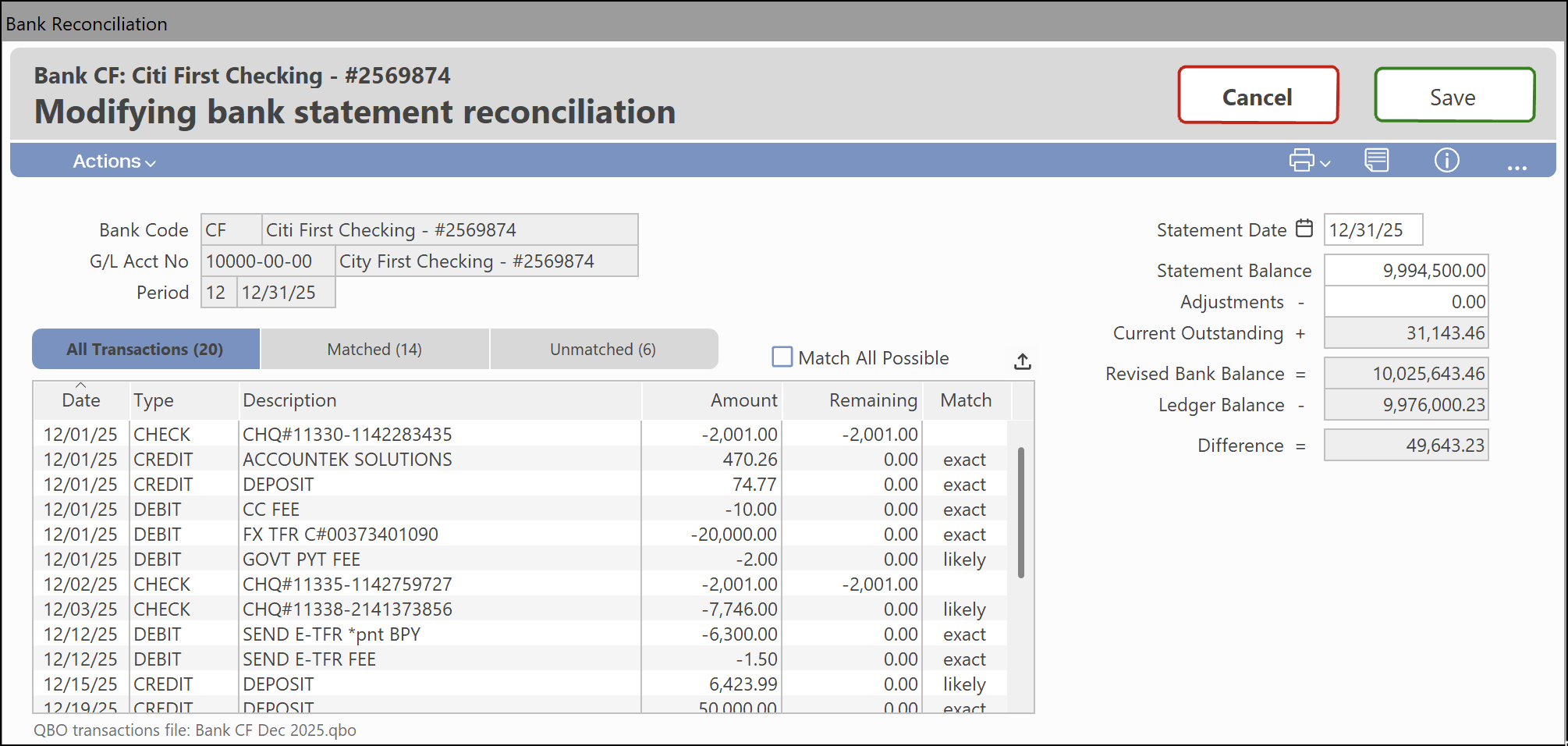
Any transaction that has an exact match will be indicated in the Match column. Tabs across the top of that window section list All, Matched, and Unmatched transactions.
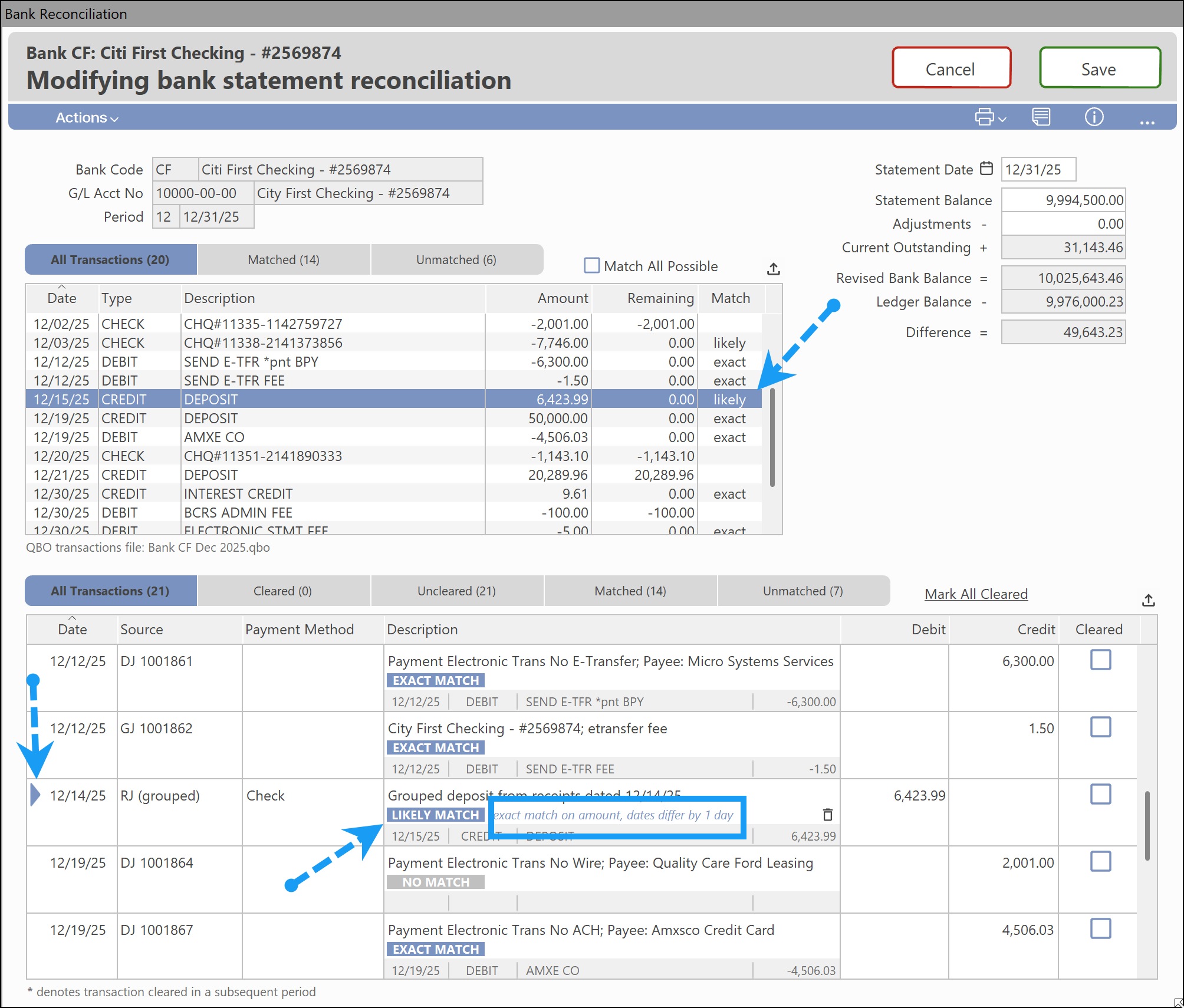
If a transaction is selected from either the top or bottom window, an Exact Match will be indicated in both windows — highlighted in the top window, and with an indicator on the left side of the screen in the bottom window. The matching information will appear under the description of the transactions in the lower window.
A Likely Match will be indicated as shown below:
2.4 How to Adjust an Incorrect Match
If a match is not correct, it can be unmatched by clicking the trash can icon in the lower right part of the Description box.

Connected will then provide the following prompt:
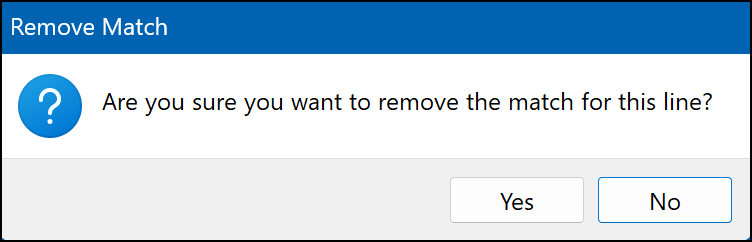
Answer Yes to remove the match and No to cancel.
NOTE Once a match (of any kind) has been removed, it will not be matched again until the Bank Reconciliation window is closed and the QBO file is reloaded. |
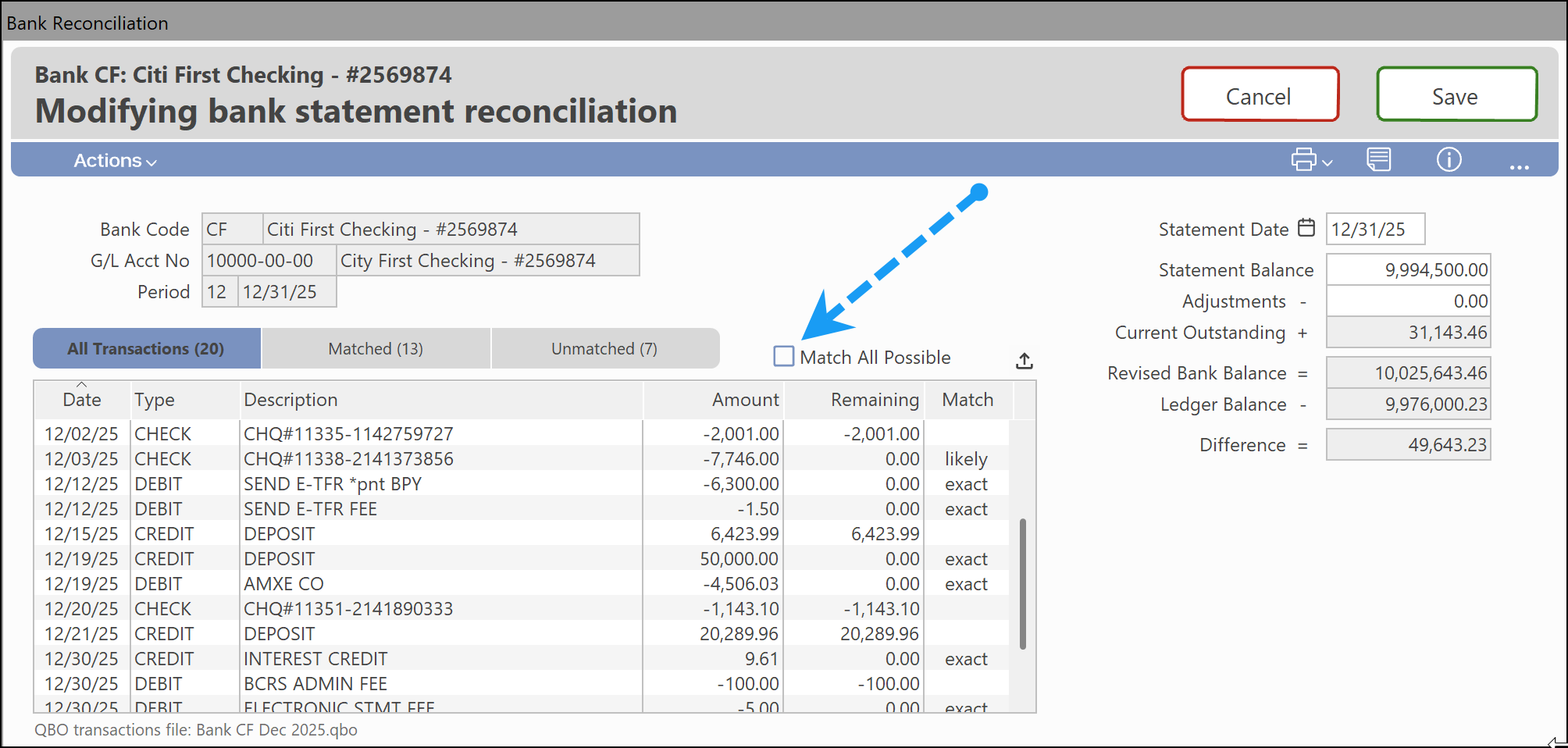
2.5 How to Use the Match All Possible Toggle
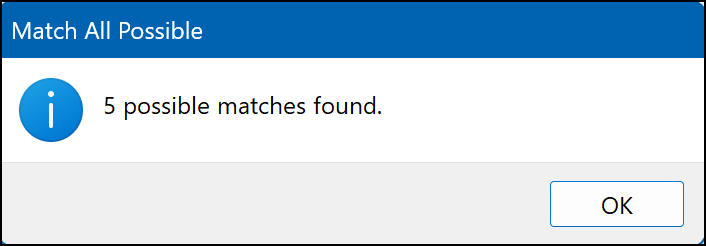
If the Match All Possible checkbox is selected, a message will appear indicating how many transactions were "possible" matches. A possible match is the first match found with an exact amount — dates are not compared, and other transactions with the same amount are ignored. They will be indicated with the word possible in the bank reconciliation window.
2.6 Manual Matching
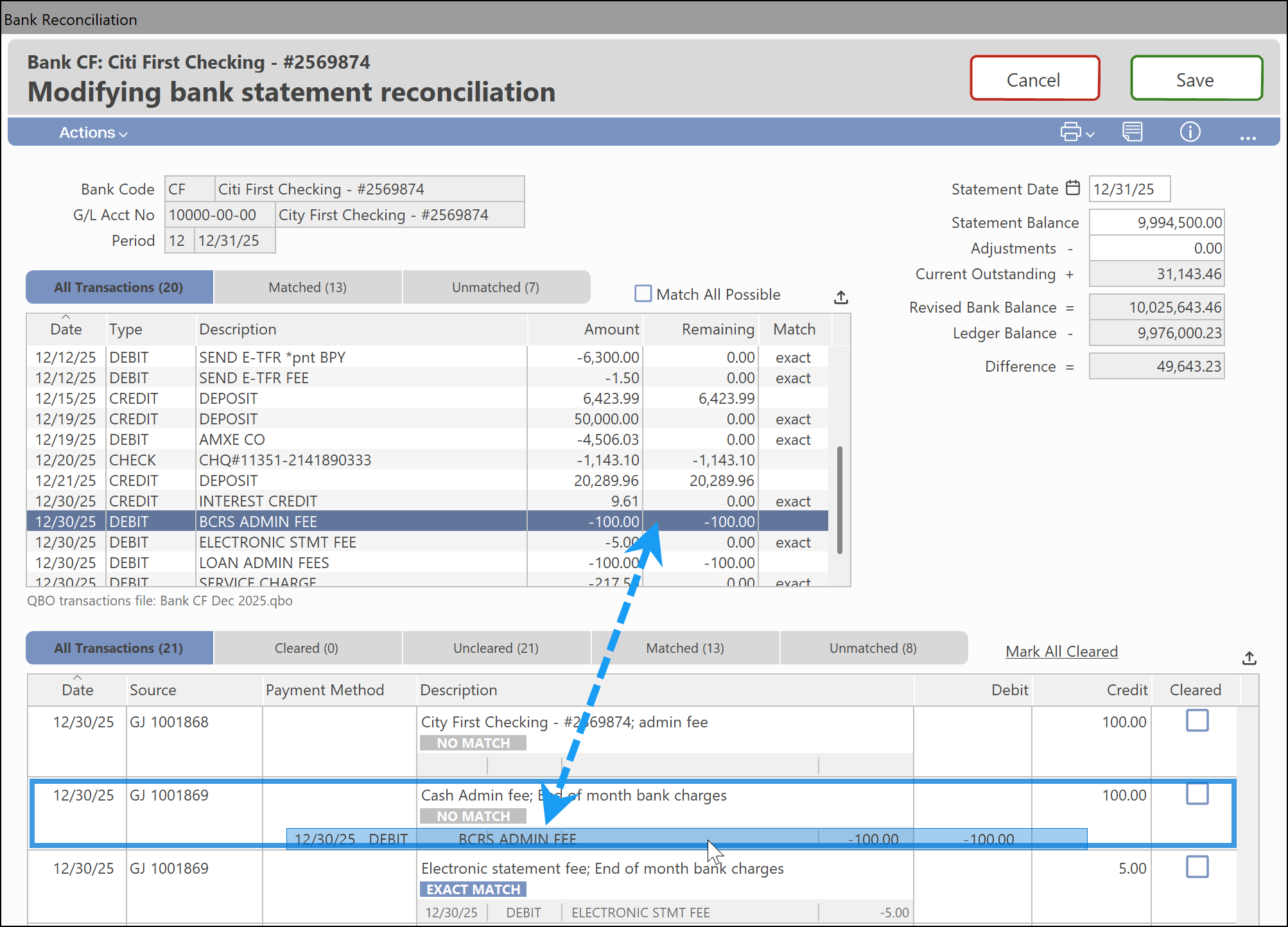
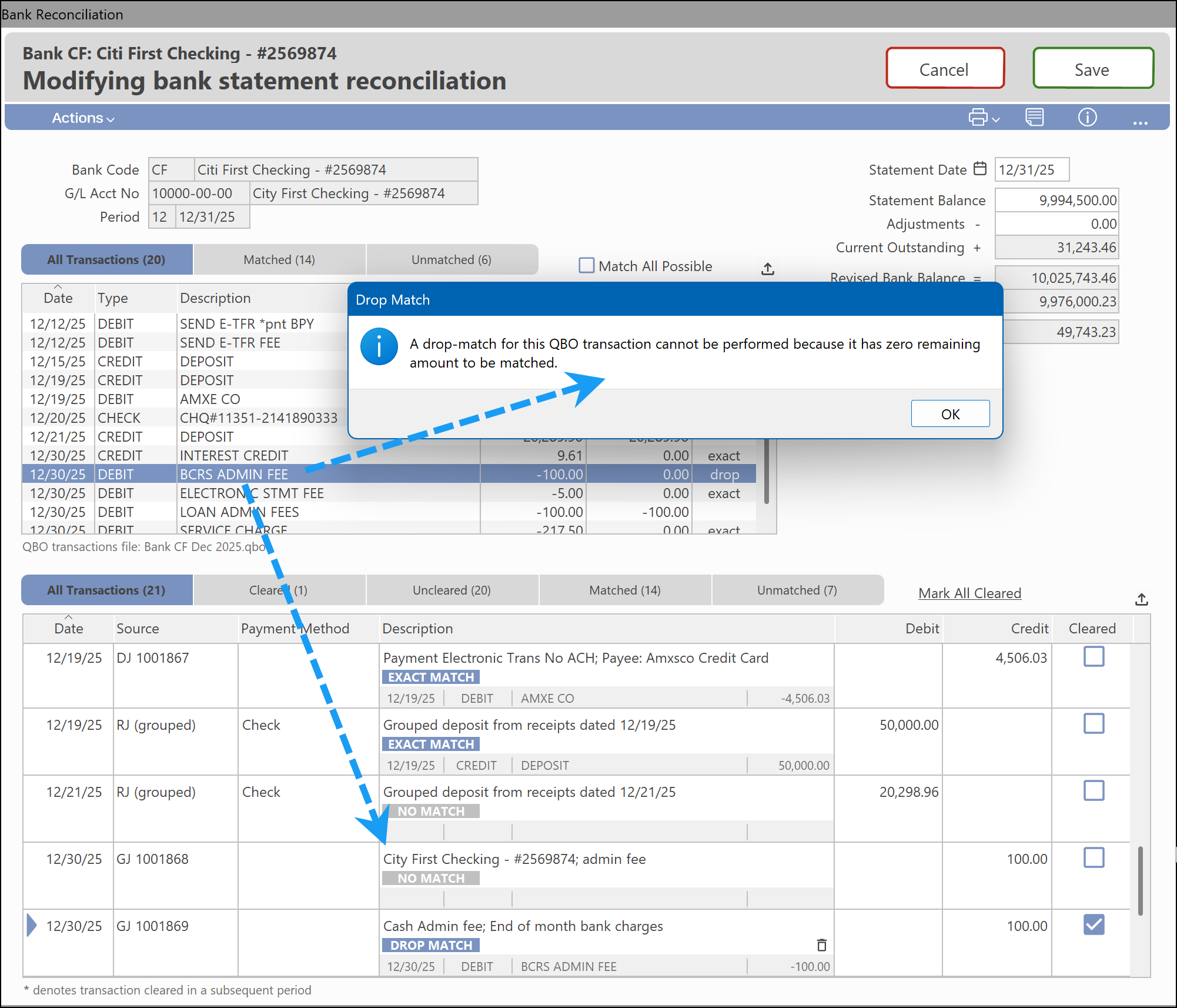
Some matches need to be made manually. This can be accomplished by selecting a transaction in the upper window and dragging it on top of a transaction in the lower window.
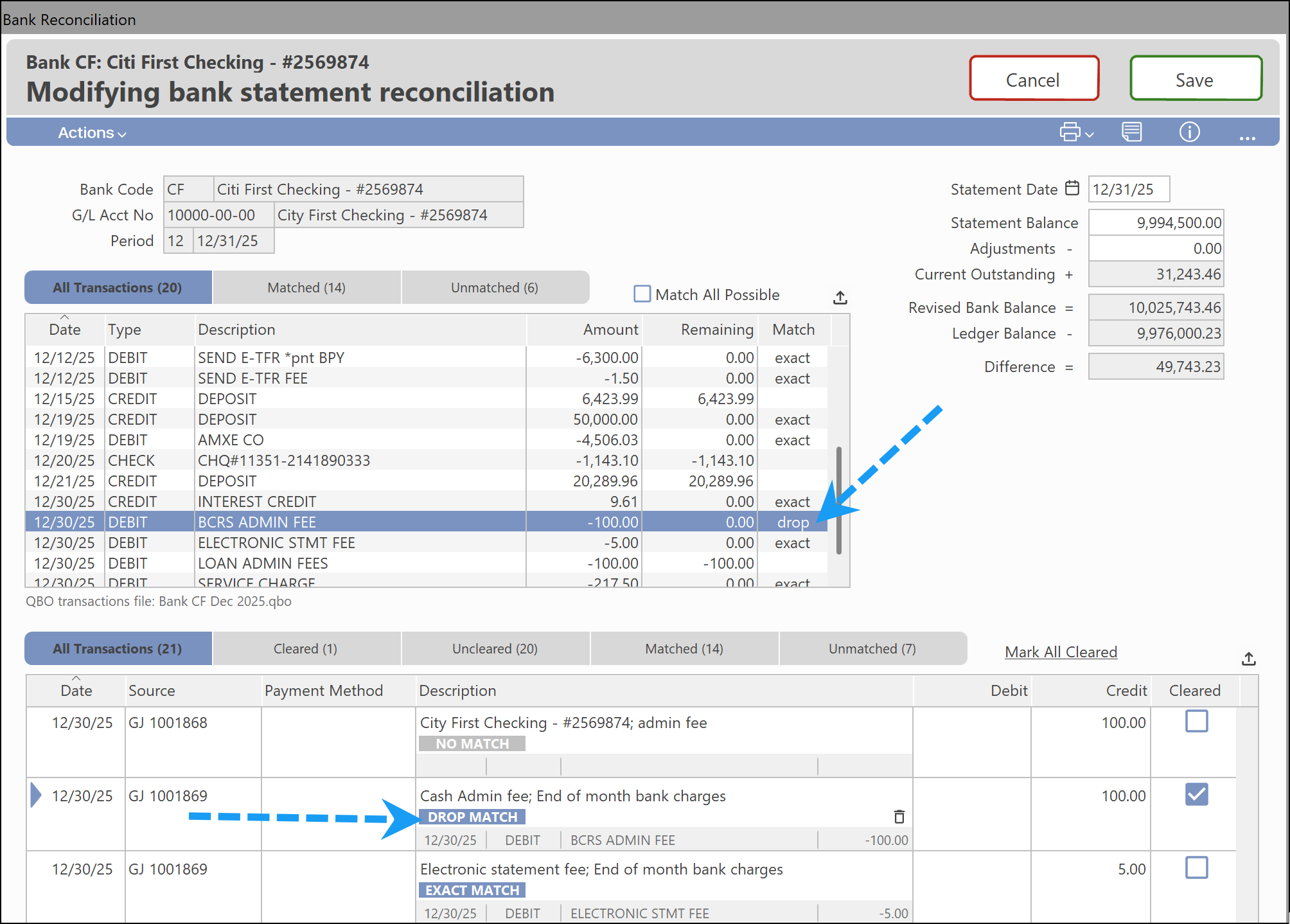
The manually matched transaction will appear as Drop Match.
NOTE If there is already a possible match for a transaction, a manual match cannot be made until it is removed. |
2.7 How to Save Cleared Matched Transactions
Using the matches from the QBO file, it's possible to mark as cleared all transactions that are matched. If the bank reconciliation is saved and not all transactions that have been matched have been marked as cleared, a message will appear.
2.8 Using Notes to Attach a Bank Statement or .QBO File
You can use the Notes feature in Connected to attach documents, such as a PDF of a bank statement, right to the Bank Reconciliation window.
Read more here: Using and Linking (Attaching) Files to Notes.
3. Tips and Tricks
| Tip | Details |
|---|---|
| Do the drop matches last | If you do a drop match and then need to exit the bank reconciliation window to add another entry, any drop matches previously made will be undone and will need to be redone the next time the bank reconciliation is loaded. |
| Splitting a combined bank amount | If there are 2 transactions recorded in Connected that represent a combined amount from the bank statement (example: a receipt that covers 2 customer codes in Connected), you can match the bank transaction to 1 of the amounts. Connected will provide a warning that the amounts do not match, and then you can match the remaining difference to the other transaction. |
| Voided payments and receipts | Voided payments and receipts from the bank feed will not be matched. |
| Repeating transaction amounts | Transaction amounts that repeat may cause improper matching, especially if the dates are also the same. Review the detailed section of the bank reconciliation (where you clear the item) and ensure that the exact match is actually exact. For example, you may have the same amount received from different customers on the same day; Connected may "match" them incorrectly — different customer, same amount — and call it an "exact match." |
| Record transactions as they appear on the statement | Try to record transactions the same way they appear on the bank statement, especially the amounts. While it's more work to add in multiple transactions for various bank charge amounts, recording them the way they appear on the bank statement will make the matching process more efficient. |
| Descriptions matter less than value and date | Descriptions are not as important as recording the same value on the right date as the QBO download. |
| Use a portrait-mode monitor | A monitor in portrait mode really helps if there are a lot of entries through the bank account. |
4. Related Articles
- Reversing a Posted Journal Entry
- Adding a General Ledger Account
- General Journal Entries
- New Features Our Customers Love in Connected 12
- Payroll Freedom with Easy Transfers to Connected
- The Software Subscription Trap
- What to Expect When Moving from Quickbooks to Connected
5. Reference Links
Was this article helpful?
That’s Great!
Thank you for your feedback
Sorry! We couldn't be helpful
Thank you for your feedback
Feedback sent
We appreciate your effort and will try to fix the article