Knowledge Base · Email
Applies to: Connected 10, 11 and 12 | Platform: macOS (Sequoia 15, Tahoe 26, Golden Gate 27) Any macOS version that supports the current version of Microsoft Office 365
⚠ IMPORTANT Connected can no longer send email through Microsoft Outlook on macOS. Microsoft has removed functionality in a recent update. To keep sending email from Connected, switch to Apple Mail or Connected Mail. See Your options for sending email from Connected. |
ARTICLE CONTENTS
- 1. What's Happening to Outlook on macOS
- 2. Your options for sending email from Connected
- 3. Need help?
- 4. Reference Links
1. What's Happening to Outlook on macOS
Using macOS, Connected can send email through one of three options: Microsoft Outlook, Apple Mail, or Connected Mail.
To create and send emails through Outlook, Connected uses a macOS feature called AppleScript. AppleScript lets Connected open Outlook, create the message, attach your document and send it.
Microsoft recently announced, with little advance notice, that it will not support AppleScript in the new Outlook for macOS. At the same time, Microsoft is retiring the older “Legacy” Outlook, the only version that supports it. Because of this change by Microsoft, Connected can will no longer send email through Microsoft Outlook on macOS.
A new way to use Outlook to send email from Connected is being worked on. Until then, the options below are available.
NOTE This change affects Outlook only. Other Microsoft apps, such as Excel, are not affected, so reports sent to a spreadsheet from Connected will keep working as usual. |
2. Your options for sending email from Connected
2.1 Option 1: Apple Mail
Available in: Connected 10, 11 and 12
Apple Mail comes free with every Mac and works with Connected. You can use it in one of two ways:
- As your main email app. Use Apple Mail for all your email, including email sent from Connected.
- Only for email sent from Connected. Keep Microsoft Outlook as your main email app, and set up Apple Mail just for sending from Connected. You don't need to use Apple Mail for anything else.
Emails sent this way appear in your Apple Mail Sent folder.
To get started:
- Open Apple Mail and configure your email account.
- In Connected, select the Connected menu (for example,
Connected 12) ›Preferences›Email. - Select Apple Mail as your email method, as shown in the following screen:
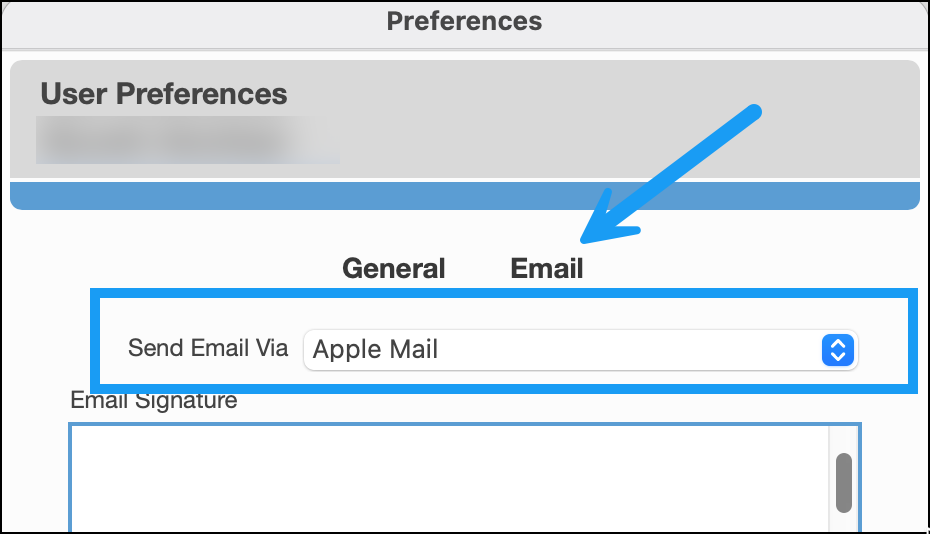
Learn more about Email in Connected
2.2 Option 2: Connected Mail
System Requirements for Connected Mail: Connected 12 or Connected on Demand
Connected Mail sends email directly from Connected, with no separate email app needed. It works everywhere documents are sent from, including invoices, statements, quotes, purchase orders, order confirmations and payment advices.
What you'll need: Your email account's outgoing mail server (SMTP) details. Your email provider or IT contact can give you these.
Learn more about setting up Connected Mail
NOTE Only one email method can be active for each Connected user account at a time. |
3. Need help?
If you're not sure which option is right for you, or you need help setting one up, contact Accountek Support.
4. Reference Links
Was this article helpful?
That’s Great!
Thank you for your feedback
Sorry! We couldn't be helpful
Thank you for your feedback
Feedback sent
We appreciate your effort and will try to fix the article