Knowledge Base · Intro to Connected Reports
Applies to: All Supported Versions | Platform: All Platforms
ARTICLE CONTENTS
- Introduction
- Report Window Interface
- Report Output Options
- Print Window Reports
- Related Articles
- Reference Links
1. Introduction
This article introduces you to the report interface and various outputs that are available in Connected.
2. Report Window Interface
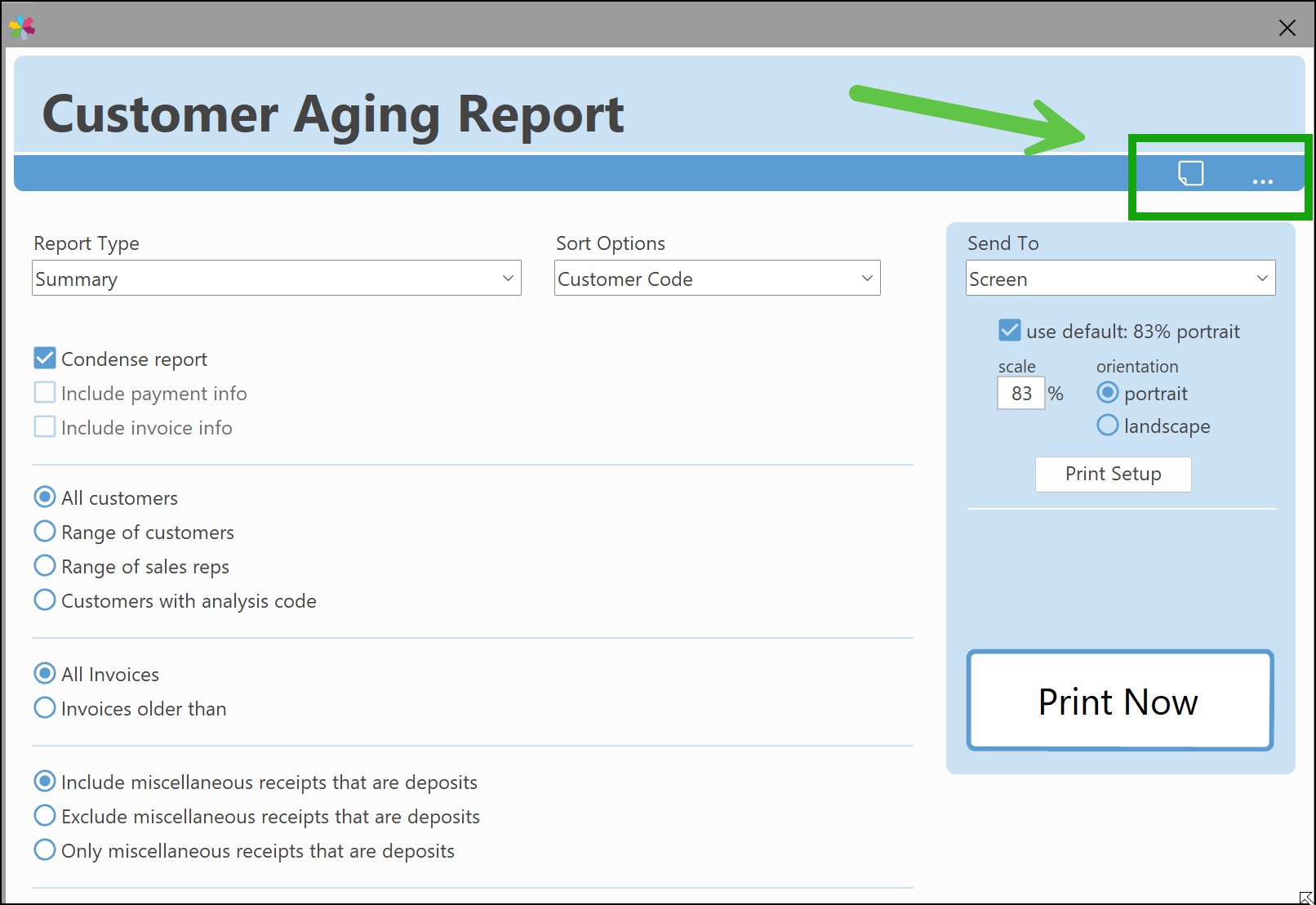
Most Connected report windows are equipped with a number of additional features, including support for Notes, the ability to change the report window color, and one-click access to My Places. A sample of the location of these features, using the Customer Aging report, is shown in the following screen:
3. Report Output Options
Connected reports have several output options: Printer, Screen (default), PDF, Preview, Text File, Spreadsheet, Email, Notes, and My Reports.
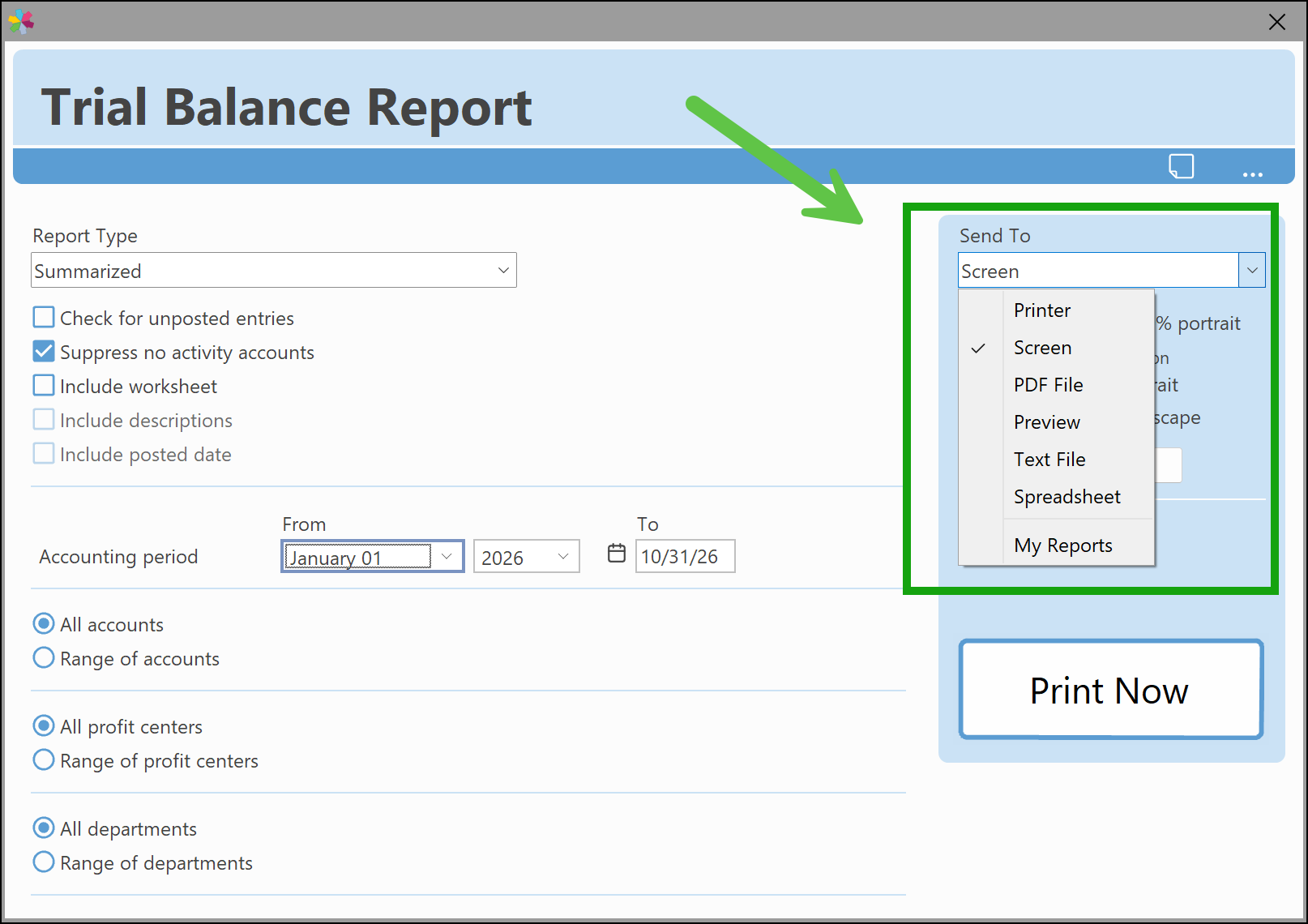
Each of these is explained below, except My Reports.
- Printer is available for all reports
- Screen is available for all reports
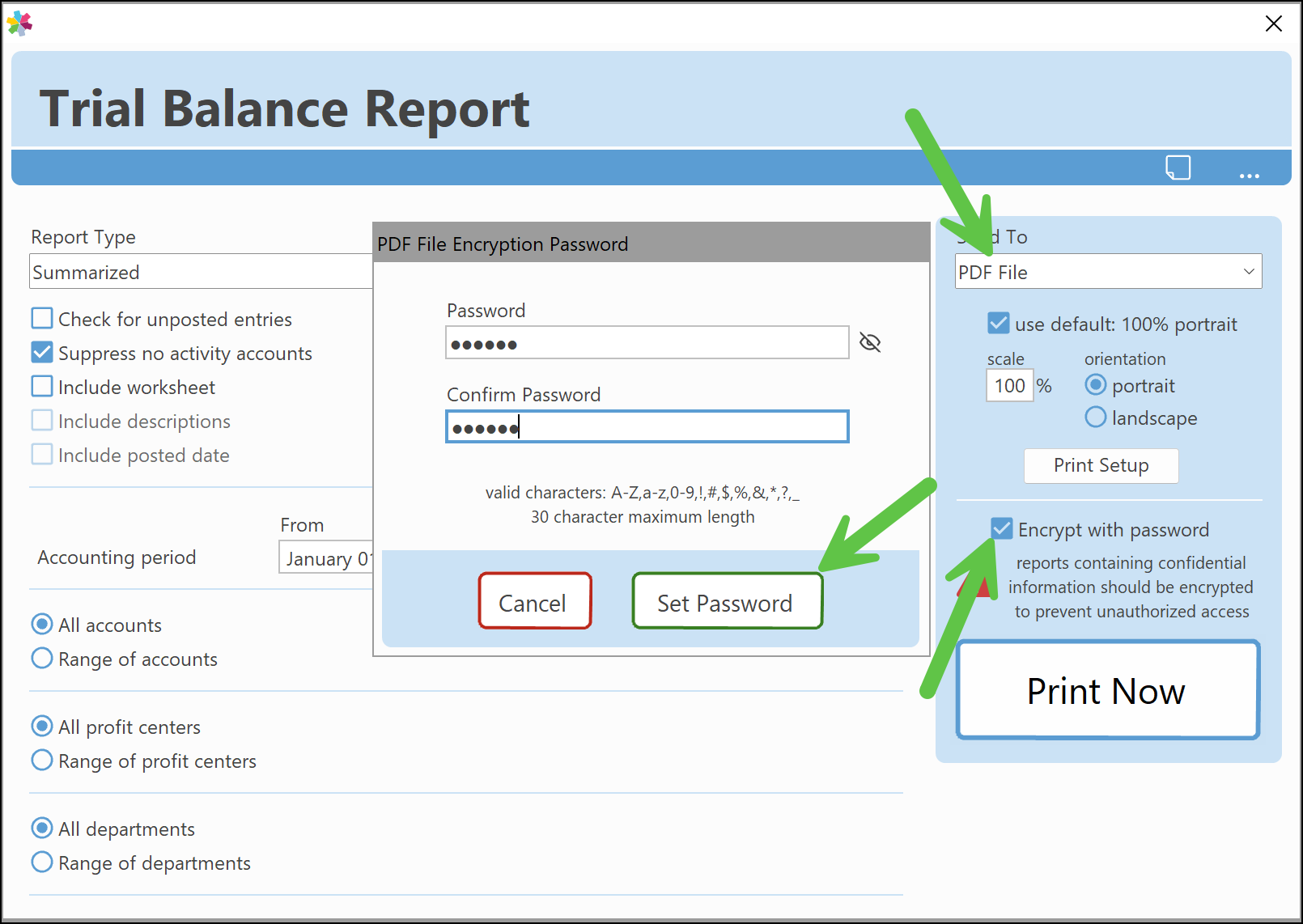
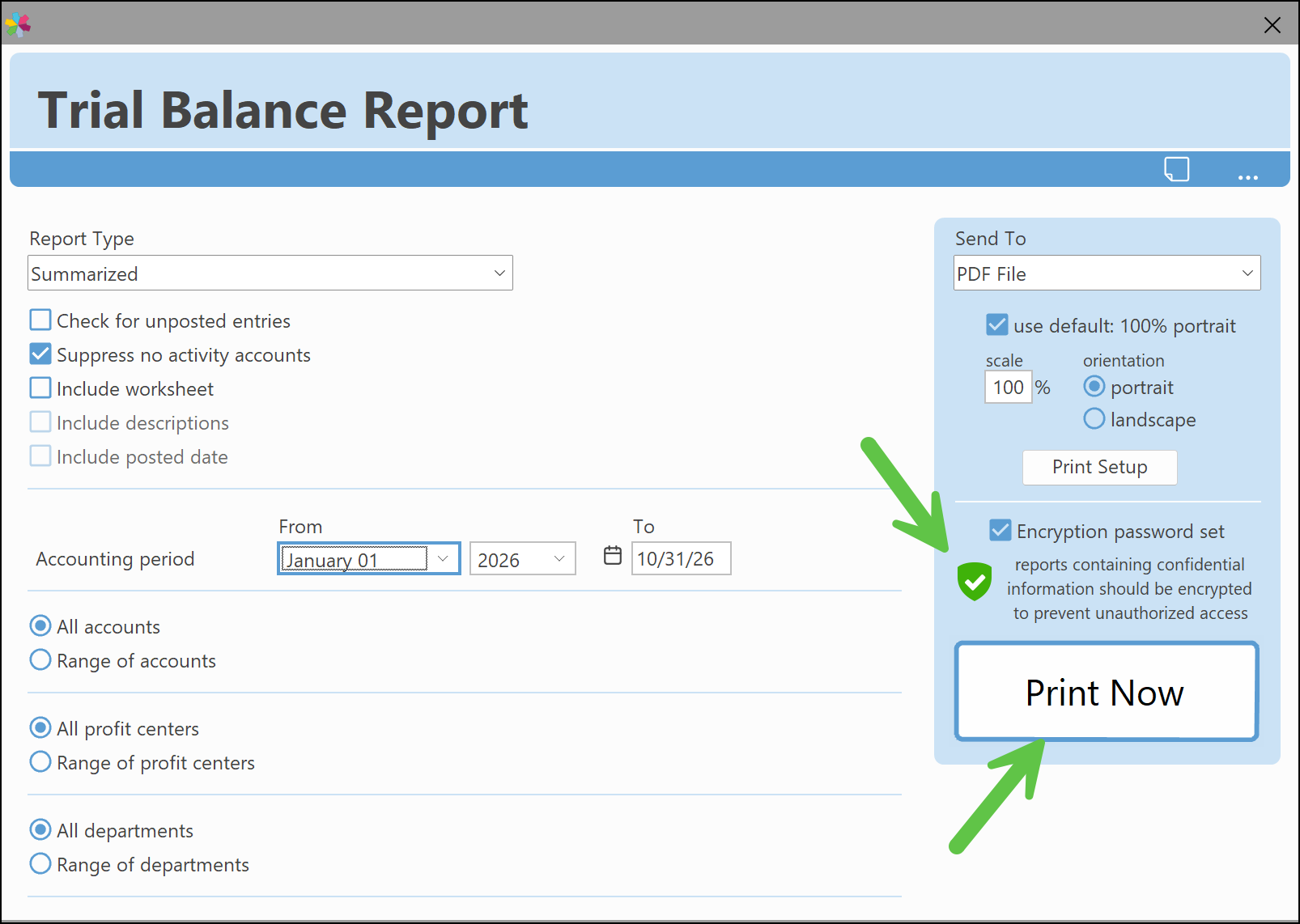
- PDF is available for all reports on both macOS and PC. When the PDF output is selected most reports can optionally be encrypted with a password, as shown in the following screens. When a password is added, the PDF file cannot be opened unless the correct password is entered.
- Preview opens the report automatically in the default PDF viewer. For PC users, this option is only available in Connected 11.2 or greater.
- Text File is available for all reports. This option will generate a tab delimited text file and prompt the user for a file name and destination to save.
- Spreadsheet is available for all reports but requires that a supported version of Microsoft Excel be available. Please refer to the Connected System Requirements for information on supported versions of Excel.
- Email is available for select reports that print forms, and is used for batch email. For example, Customer Invoices and/or Statements. Click for more information on Batch Emailing.
- Notes: If the "Note Attachments" option has been enabled in the
Company Setup>General Setupwindow, reports can be attached within the Notes of that report. In this scenario, the PDF file must be encrypted to be saved as a Note.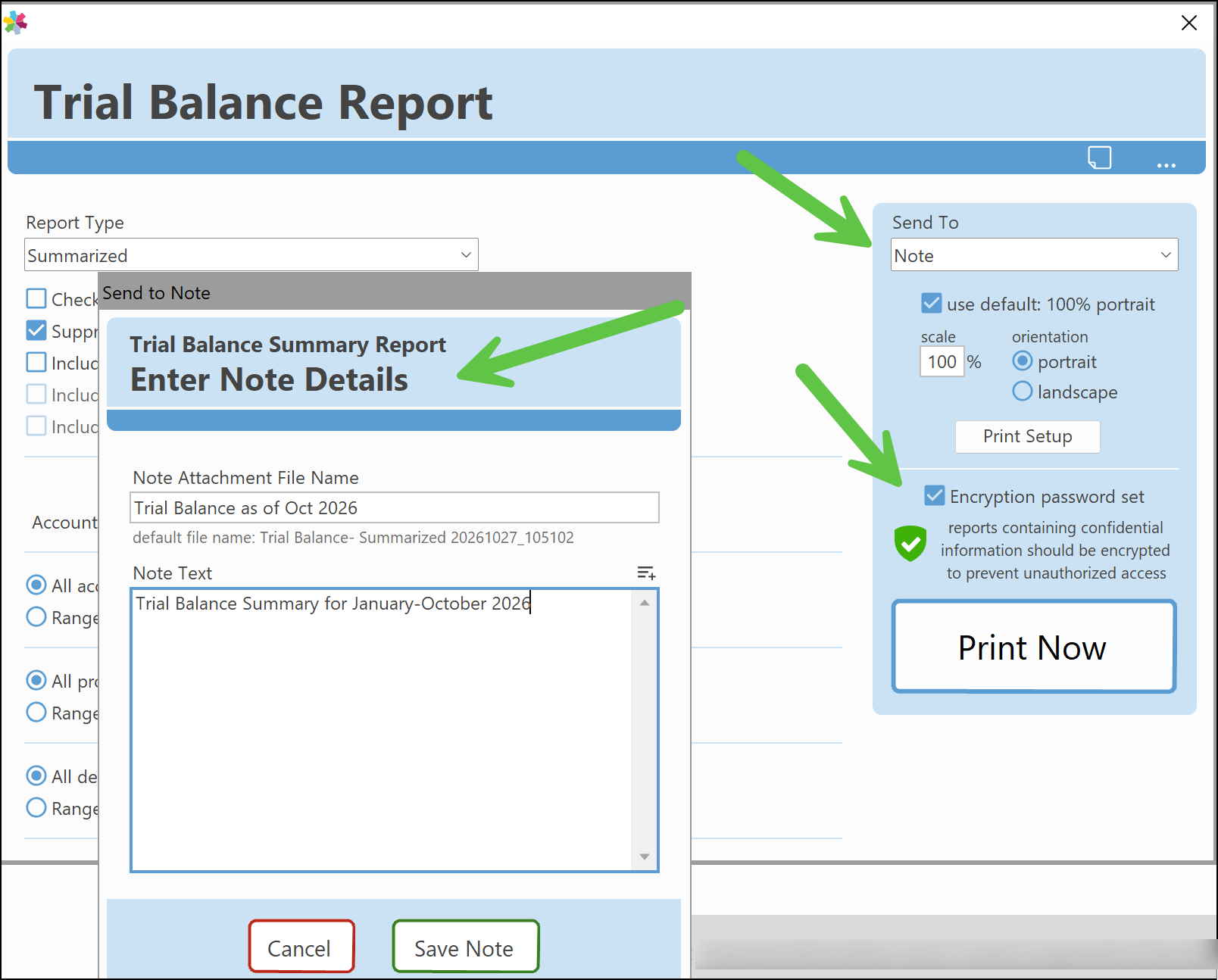
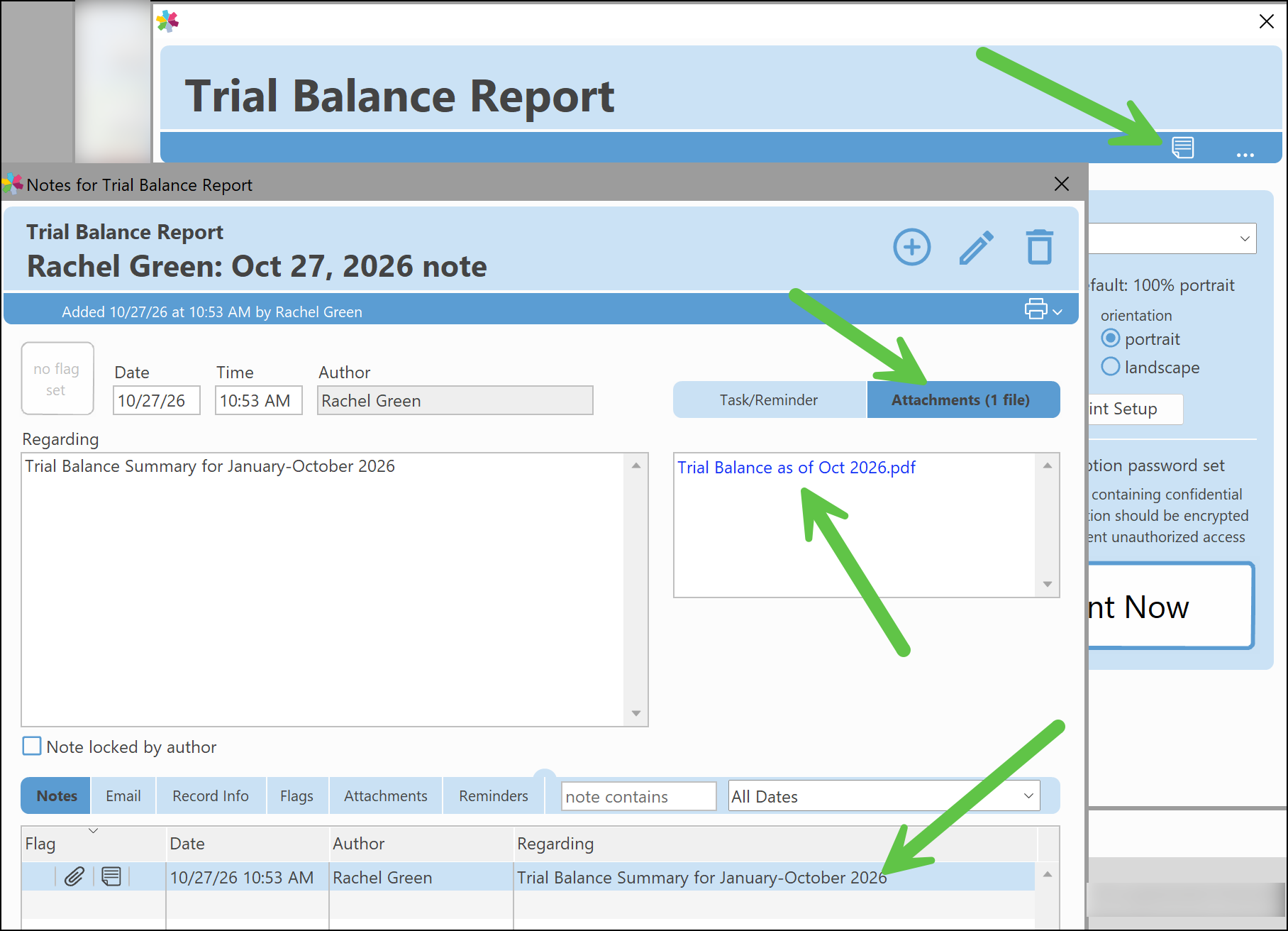
The report attachment will appear in the report window's Notes, as shown in the following screen.
4. Print Window Reports
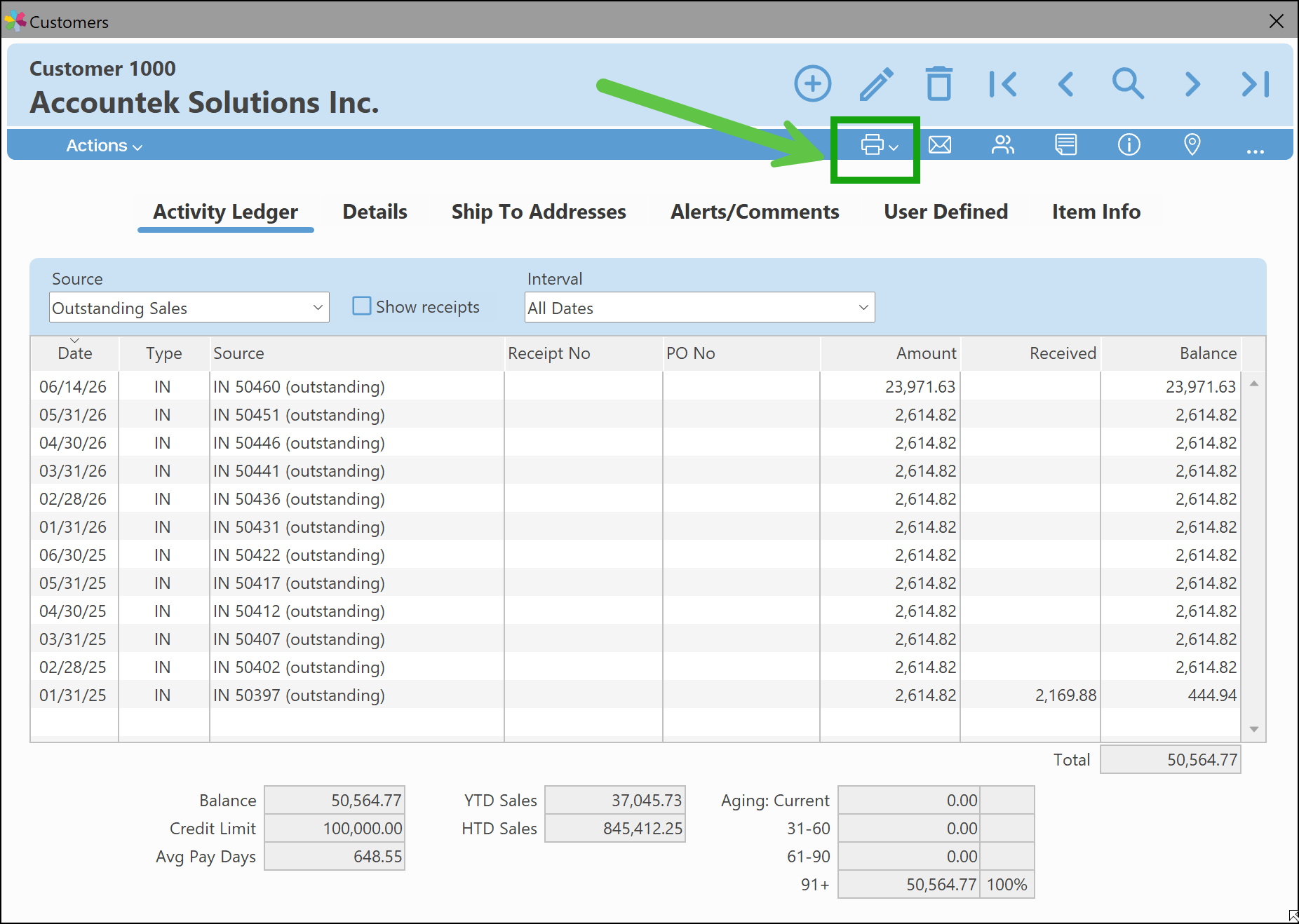
Any screen, ledger, or query that has a print icon will also produce a "report" that can be printed in various ways. There are also some shortcut options depending on what window is being printed.
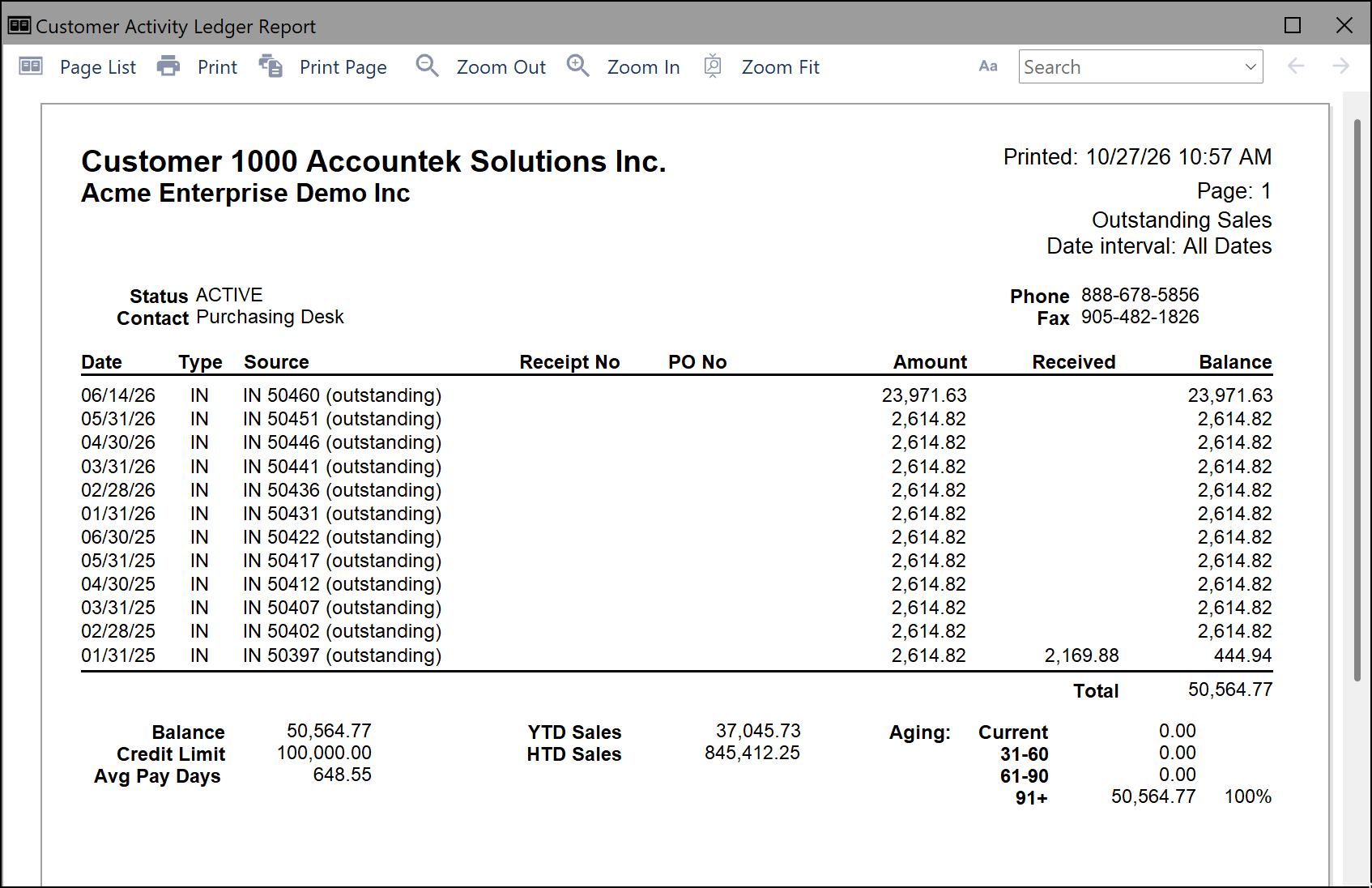
For example, a Customer Activity Ledger can be printed (to printer/spreadsheet/screen/PDF).
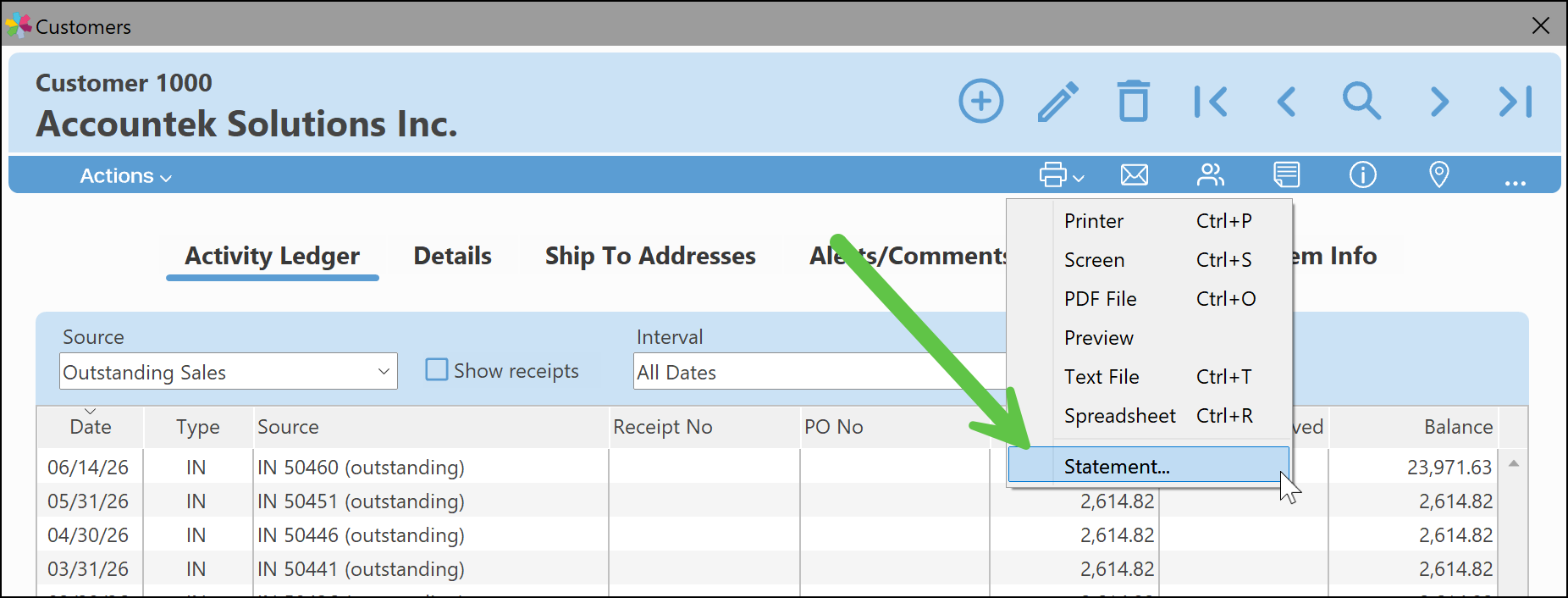
In the below screenshot, you can see the print outputs available from the Print Icon. In addition, there is also a shortcut to print an individual customer's statement directly from the window.
Here is what a screen print of the Customers Window, Activity Ledger would look like.
5. Related Articles
6. Reference Links
Was this article helpful?
That’s Great!
Thank you for your feedback
Sorry! We couldn't be helpful
Thank you for your feedback
Feedback sent
We appreciate your effort and will try to fix the article