Knowledge Base · Backup
Applies to: Connected 11+ | Platform: Desktop & Cloud
ARTICLE CONTENTS
- Overview
- Important notes about how this feature works and backups in general
- Using the Backup Data Utility
- Related Articles
1. Overview
NOTE This article not applicable when the Connected ODB Admin server software (macOS or PC Desktop) is being used. See Creating a Manual Backup with the ODB Admin for more information. |
The "Backup Data" Option is located under the Utilities menu. This feature is used to create zip file archives of the current Connected data file (the data you are logged into). This can be helpful to quickly archive data files in a compressed format.
A manual backup is recommended before major tasks such as closing an accounting year, purging data, or installing a Connected update. It is a point-in-time copy and does not replace your regular, ongoing backup routine.
2. Important notes about how this feature works and backups in general
- The backup utility is password protected. Any user, except the designated Administrator(s) of a Connected data file must be granted password access to access the utility.
- Backups cannot be performed with users logged into the data file. Connected must be able to confirm it is in single user mode before a backup can start and will not start if more than one user is logged in.
- Managing user access to the Connected data when a backup is being performed is important. No user should attempt to login to the Connected data file while a backup is being performed to ensure that the backup is not interrupted and/or corrupted.
- For best performance, especially with large data files, the backup process should be performed on the same machine on which the file is located.
3. Using the Backup Data Utility
- Select Utilities from the File Menu and choose Backup Datafile, as shown below:

NOTE
If you are not a System Administrator, the "Backup Data" user privilege must be granted for it to be visible.
- The following Back Up Data Filewindow will appear. The file name, current file path, and data file size will all be listed.
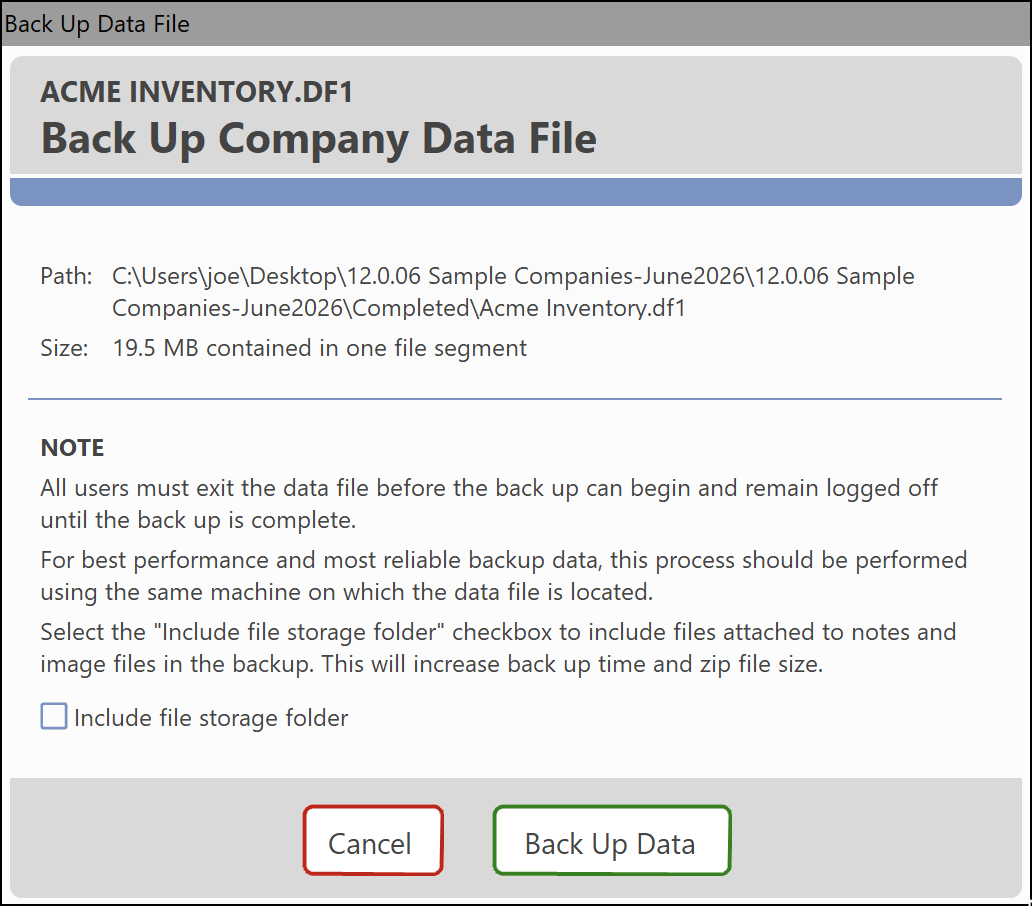
If your data file uses Note Attachments, the Include note attachments checkbox is not selected by default. See the note below for why.
NOTE
Including attachments increases the backup time and file size. If the data file includes large amounts of note attachments OR item images, it is advisable to back this folder up separately, as it can take a considerable amount of time to compress/zip.
- Click Proceedto continue. If your data file is still being accessed by other users, the following message will appear and the backup will be blocked.

- File Saving: If the data file can be set to single user mode, you will be prompted with a window to name and save the file backup. The default file name for the backup is "
Backup_MMDDYYYYHHMMSS.zip". The following file name is an example of a file backed up on 06/19/2026 at 9:53:20AM.Backup_06192026095320.zip - When the backup is completed, the following message will appear:
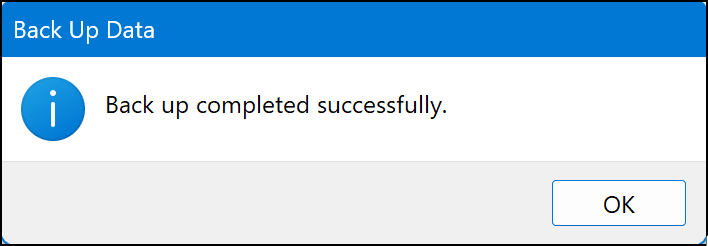
NOTE Verify that the backup process was successful by opening the backup file and ensuring you can log into the backup file. Before opening and testing the backup file, it must first be unzipped. A "zip" file cannot be opened by Connected |
4. Related Articles
Was this article helpful?
That’s Great!
Thank you for your feedback
Sorry! We couldn't be helpful
Thank you for your feedback
Feedback sent
We appreciate your effort and will try to fix the article