Knowledge Base · Accounts Receivable
Applies to: All Supported Versions | Platform: macOS, Windows, Connected on Demand | Prepared: August 2026
ARTICLE CONTENTS
- Overview
- Step 1: Create a Service Item for Write-Offs
- Step 2: Create a Credit Memo to Record the Write-Off
- Step 3: Apply the Credit Memo Against Invoices
1. Overview
This article explains how to remove, or write off, accounts receivable invoices that are fully or partially unpaid and for which no further payments are expected — for example, when a customer invoice becomes uncollectible due to bankruptcy.
To write off a bad debt, you create a credit memo using a service-type item that records the amount being written off. The credit memo is posted, then applied against the outstanding invoice(s) for that customer.
The process involves three steps:
- Create a service item to use for write-offs.
- Create a credit memo to record the write-off.
- Apply the credit memo against the outstanding invoice(s).
2. Step 1: Create a Service Item for Write-Offs
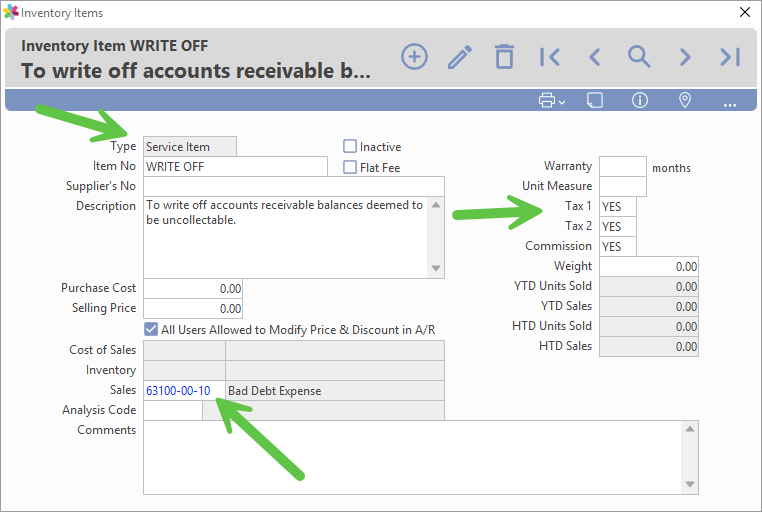
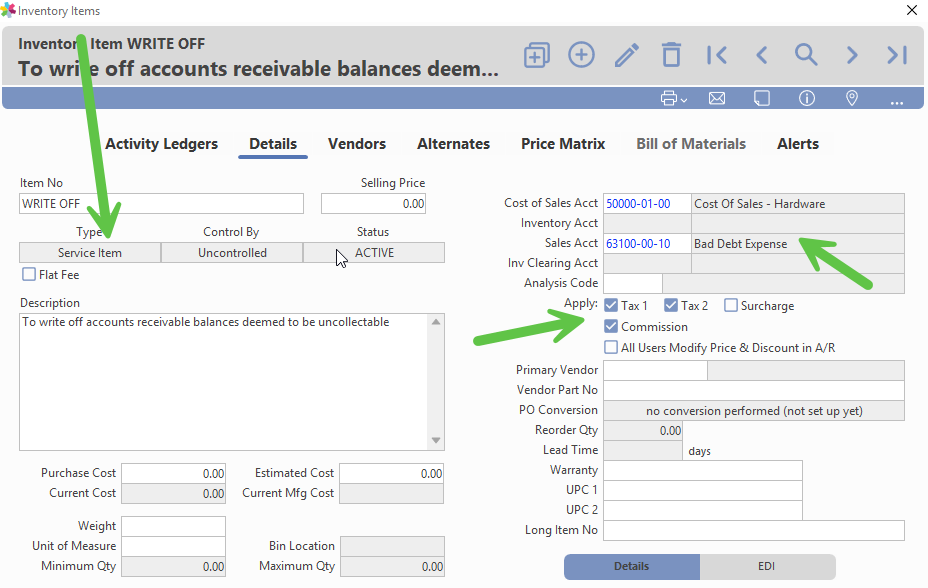
- Create a service-type item. No quantities on hand are kept or maintained for this item.
- Assign the Sales General Ledger code to the Bad Debt Expense or Allowance for Doubtful Accounts general ledger account.
- If sales taxes or commissions are to be reclaimed, mark the item as taxable/commissionable. Otherwise, leave this unselected.
Example item when Connected Inventory is OFF:
Example item when Connected Inventory is ON:
3. Step 2: Create a Credit Memo to Record the Write-Off
- Create a credit memo using the item created in Step 1, for the amount of the write-off. An example is shown below.
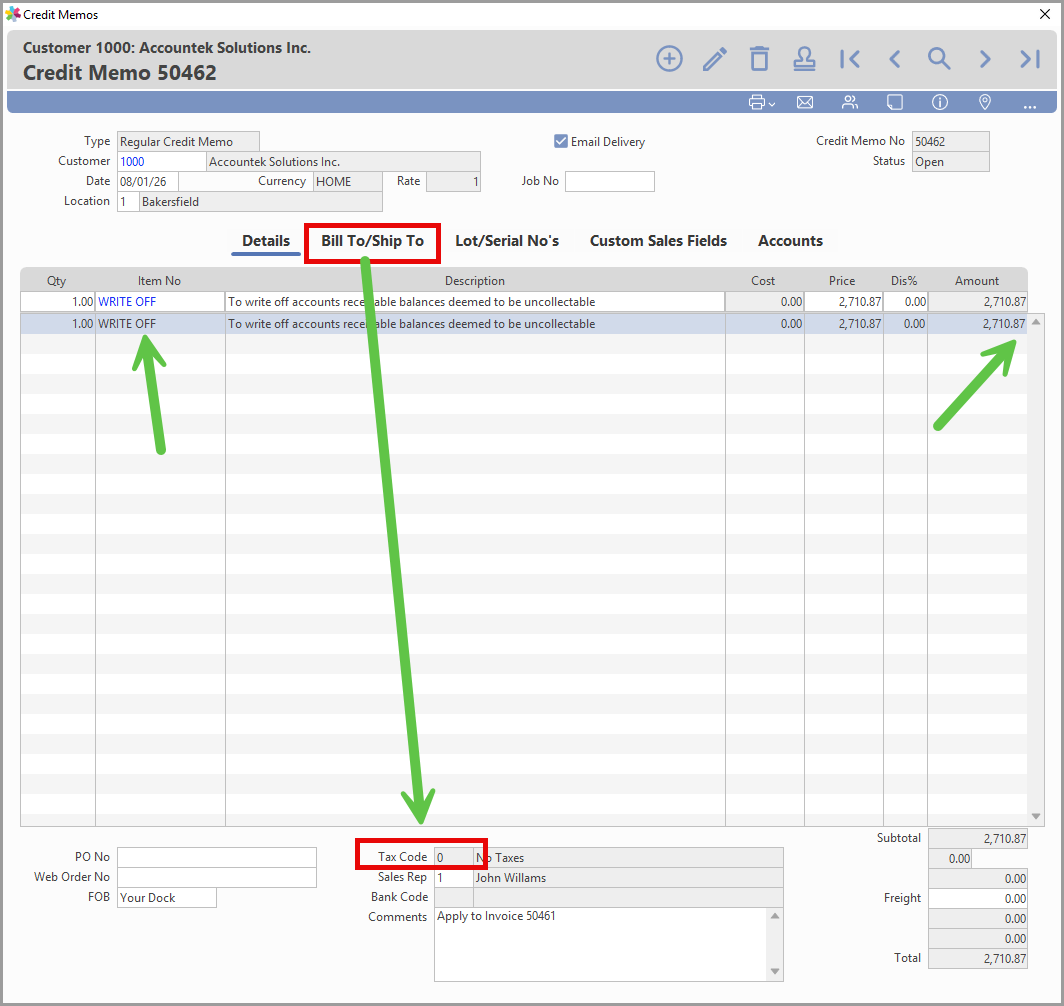
- Set the date of the credit memo to the date the bad debt expense should be recorded.
- Use a Non-Tax or Exempt tax code. This can be changed in the Bill To/Ship To window.
- Post the credit memo once it has been verified and is complete.
4. Step 3: Apply the Credit Memo Against Invoices
To apply the credit memo against the invoice(s) being written off, create a Normal Receipt for zero dollars — referred to below as the "application."
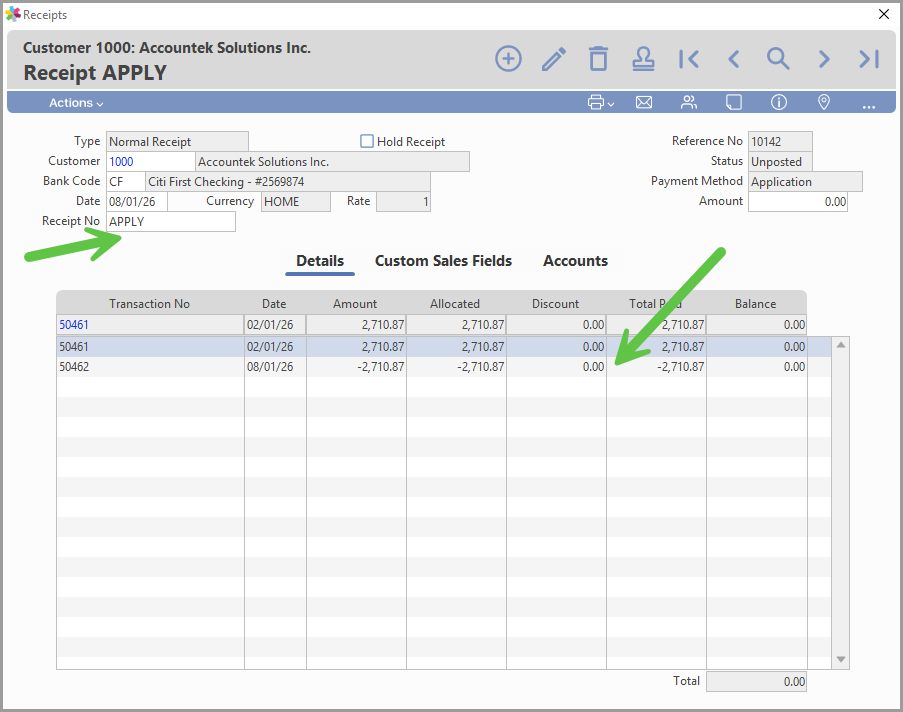
- Create a Normal Receipt for the customer. Do not enter a value in the Amount field, since this entry is a zero-dollar application.
- Tab past the Amount field and select the negative value(s) first, then apply them to the positive invoice value(s). Ensure the Unallocatedfield shows zero before saving the entry.
NOTE
Make sure the date of the application is equal to or more recent than the date of the latest transaction being applied.
- Review and post the receipt to complete the write-off. An example of the application receipt entry is shown below:
Was this article helpful?
That’s Great!
Thank you for your feedback
Sorry! We couldn't be helpful
Thank you for your feedback
Feedback sent
We appreciate your effort and will try to fix the article